Lathe Maker Studio
User Guide
Make G-code for a CNC lathe or a rotary axis on your router, check it, and run it on the machine.
For Lathe Maker Studio on the website and the app. October 2026.
Contents
- Getting going
- What it is, and getting started
- Safety first
- Two kinds of machine
- Making G-code
- Turn a part
- Grooves, a thread and parting off
- The rotary axis: turning on a router
- Flutes, text and pictures round the work
- The simulator
- Running it on the machine
- Send to machine: a lathe
- Send to machine: a rotary axis
- When something is wrong
- Problems and fixes
- Quick reference
1What it is, and getting started
Lathe Maker Studio makes G-code for round work, on two kinds of machine: a CNC lathe, and a CNC router with a rotary axis (a fourth axis that turns the work).
- Turn a part: for a lathe. Draw the outline, start from a ready-made part or a picture, and choose what to do: face the end, rough, finish, drill a hole, cut grooves and a thread, and part it off.
- Rotary axis: for a router. Turn a shape such as a table leg, cut straight flutes or a barley twist, wrap text or a drawing round the work, or carve a picture right round it.
- The simulator: cuts any lathe or rotary file move by move, with the real shape of each tool, so you see what the machine will make before it does.
- Send to machine: connects to a GRBL or grblHAL machine over USB, from the browser, and runs the job.
Everything runs on your own computer. Your drawings and pictures are not sent anywhere. Lathe Maker Studio is also an app for Windows and Mac, with the same pages.
Your account
- Sign in with your free 3d-lithophane.com account. Every tool needs it; this guide does not.
- While Lathe Maker Studio is new it is open to our beta testers. The Beta Testing menu says how to become one.
The usual order
- Make the G-code on Turn a part (a lathe) or Rotary axis (a router).
- Press Watch it run to see it in the simulator.
- Run it in the air first, with the tool well clear of the work, or on the pretend machine.
- Press Send to machine: connect, set the zeros, and run it.
2Safety first
- Tie long hair back, roll your sleeves up, and wear no gloves near the turning work.
- Take the chuck key out every time, before you start the spindle.
- Wear safety glasses and keep the guard on. Chips are hot and sharp.
- Hold the work tight. Long work needs the tailstock; work that flexes or slips is thrown.
- Stay with the machine, a hand near its own emergency stop. Stop on the screen is not an emergency stop.
- Run a new file in the air first (the tool well clear of the work) or on the pretend machine, and check the tool never comes near the chuck's jaws.
There is no table of right speeds and feeds here, on purpose: the material, the tools and your machine decide. The pages start with gentle numbers for aluminium on a small lathe, and for wood on a router.
3Two kinds of machine
A CNC lathe
The work turns in the chuck and the tool moves in two directions: X across, towards the centre and away, and Z along the work. Z0 is the finished end face, at the free end of the part; moving towards the chuck is minus Z. X is written as a diameter (G7), or as a radius (G8) if your machine wants that.
The pages measure a part along from its free end: 10 mm along is 10 mm from the end face towards the chuck.
A rotary axis on a CNC router
The work is held between a chuck and a tailstock and turned by the rotary axis, while the router cuts from above.
- X runs along the work. X0 is the left end of the stock, the chuck end.
- Y0 must be right over the centre line of the rotary axis. The file never moves Y.
- Z0 is on the centre line, or on top of the stock: you choose on the page.
- The turning axis is usually A. It can be B or C, or a motor wired in place of Y. One turn is 360 when the axis is set up in degrees.
Making G-code
4Turn a part
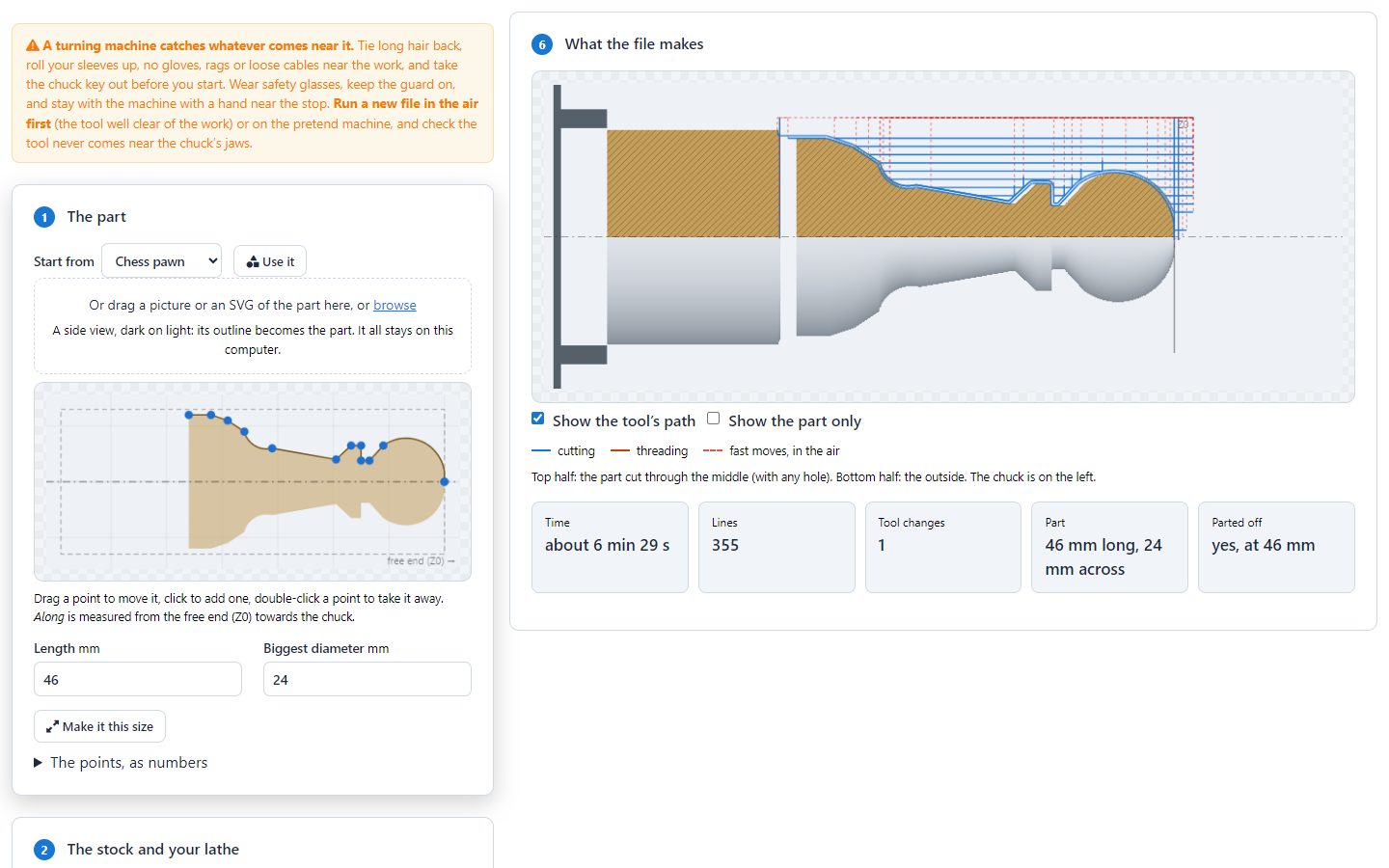
- The part: start from a stepped shaft, a knob, a chess pawn or a tool handle and press Use it, or drop a picture or an SVG of the part, a dark side view on a light background. Then drag the points: drag one to move it, click to add one, double-click one to take it away. Type a length and the biggest diameter and press Make it this size. The points, as numbers lets you type each one.
- The stock and your lathe: the stock's diameter, how much sticks out of the chuck, and how much to face off the end. Your controller, whether X is a diameter or a radius, the top spindle speed and the Z travel.
- The tools: the number of each tool in your turret or tool post, the turning tool's nose radius (it is on the insert, 0.4 mm on a CCMT 09T304) and the steepest slope down it can follow, the grooving tool's width, and the drill's diameter.
- What to do: tick what you want and set each one's depth of cut, feed and speed. Facing, roughing (leaving a little for the finishing pass) and finishing are on to begin with.
- The G-code: download it, watch it run, send it, or look at the first lines.
- What the file makes: the file itself, cut by the simulator. The chuck is on the left. Below it: the time, the number of lines, the tool changes, the part's size and where it comes off.
- The finishing pass follows the outline with the nose radius allowed for, so a round tip leaves the shape you drew.
- If the outline drops more steeply than the turning tool can follow, the page warns you: the tool's side would rub.
- Between tools the file stops (M0) and a comment says which tool to put in. Start carries on.
5Grooves, a thread and parting off
Grooves
Press Add a groove and give it a place along (its edge nearest the free end), a width and the diameter at its bottom. A groove narrower than the grooving tool comes out as wide as the tool. Pecks pull the tool back now and then to break the chip.
A thread
- An outside 60° metric thread: from and to (mm along), the size (M10 is 10 mm), the pitch, the number of passes and spring passes, and the speed. Feeding in along the flank (29.5°) gives a cleaner cut.
- Turn the part to the thread's size first, a little under. The page warns you when the part there is too big or too small.
- The tool needs room to pull out at the end of the thread. The page asks for a relief groove there; when a thread is on, Add a groove puts one at the thread's end, the right size.
- Threads use
G33, which keeps the tool in step with the spindle. Only grblHAL (with a spindle encoder) and LinuxCNC can do that. For Mach Turn and plain GRBL threads are left out.
Drilling and parting off
- Drill a hole on the centre line, from the end face, in pecks.
- Part it off cuts the part free at its full length, with the grooving tool. The simulator says whether the part really comes off.
6The rotary axis: turning on a router
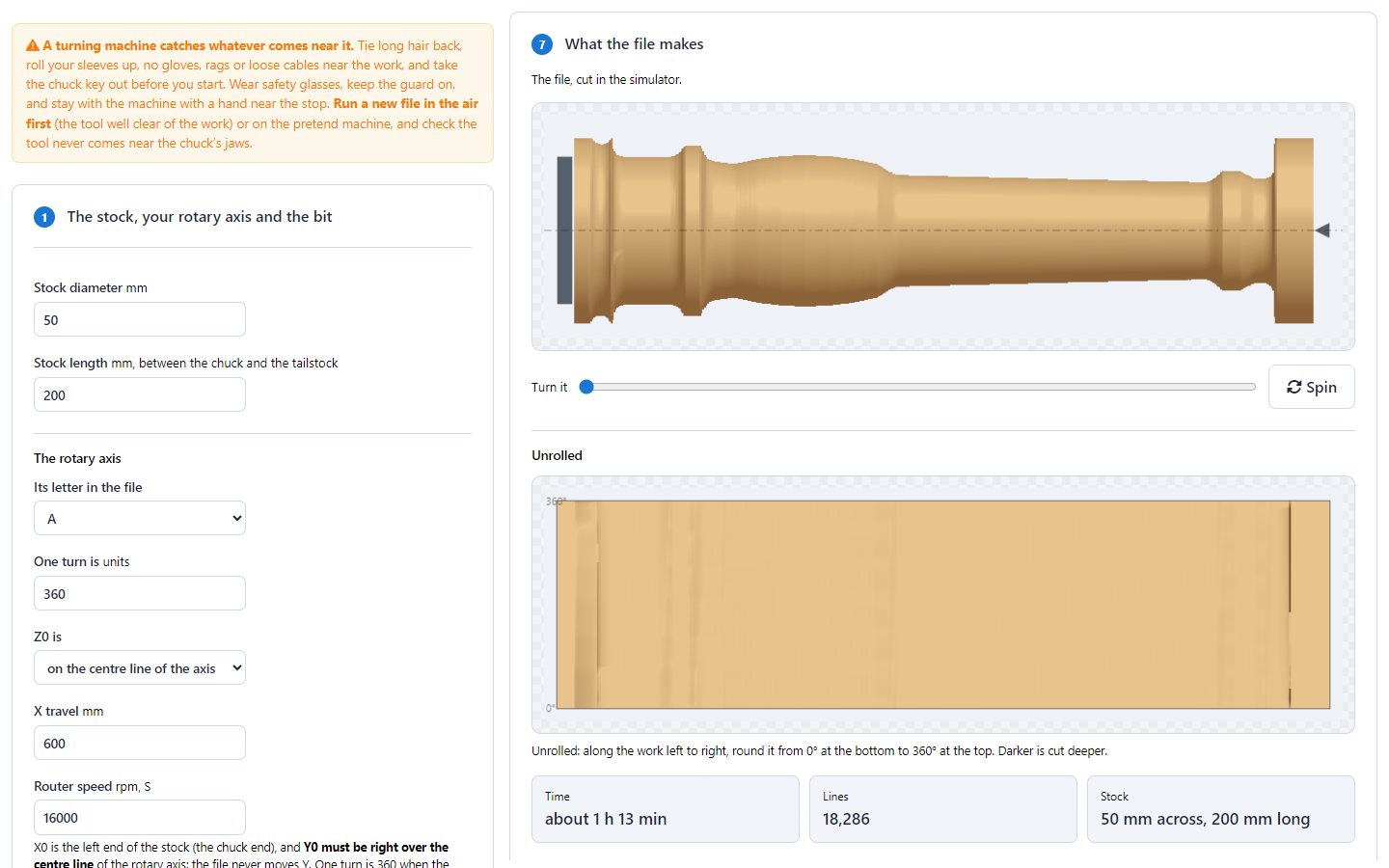
- The stock, your rotary axis and the bit: the stock's diameter and its length between the chuck and the tailstock; the axis letter, what one turn is, where Z0 is, the X travel and the router's speed; the bit (ball nose, flat or V), its diameter, how far to stay clear above the stock and the plunge feed.
- Turn a shape: a table leg, a rolling pin, a candle holder or a tool handle, or a picture or SVG of your own, edited by its points as on Turn a part. It starts sets how far from the stock's left end.
- The router takes the wood down in layers (each layer), moving along the work a little on every turn, then finishes with closer turns. The feed is the speed over the wood.
- The preview shows the work as the file cuts it. Drag Turn it, or press Spin, to see it from every side.
- Unrolled lays the surface out flat: along the work from left to right, round it from 0° at the bottom to 360° at the top. Darker is cut deeper.
- Each of steps 2 to 5 has its own tick box: turn only, flute only, or all of them in one file.
7Flutes, text and pictures round the work
Flutes and twists
- How many, from and to (mm along), the depth and each pass, and where the first one is (degrees).
- Twist is the turns over the length: 0 is straight. One or two turns with two or three flutes make a barley twist. Ease in and out lets each flute start and end gently.
- A ball-nose bit gives round flutes, a V-bit sharp ones. They follow the turned shape.
Wrap text or a drawing round it
- Type the text, choose a font and press Use the text, or drop an SVG drawing.
- Its height round the work, where it starts along the stock, where its middle is (degrees), the depth and the feed.
- A V-bit or a small ball nose follows the outlines. On a turned shape it sits at the same depth all the way along.
Carve a picture round it
- Drop a photo or a picture: dark is carved deeper (tick Light is deeper instead to swap that).
- From and to along the work, round from and to (degrees: 0 to 360 is all the way round), the deepest cut, each layer, how far apart the lines are, and the feed.
- A ball-nose bit gives the smooth look. Closer lines show more detail and take longer.
8The simulator
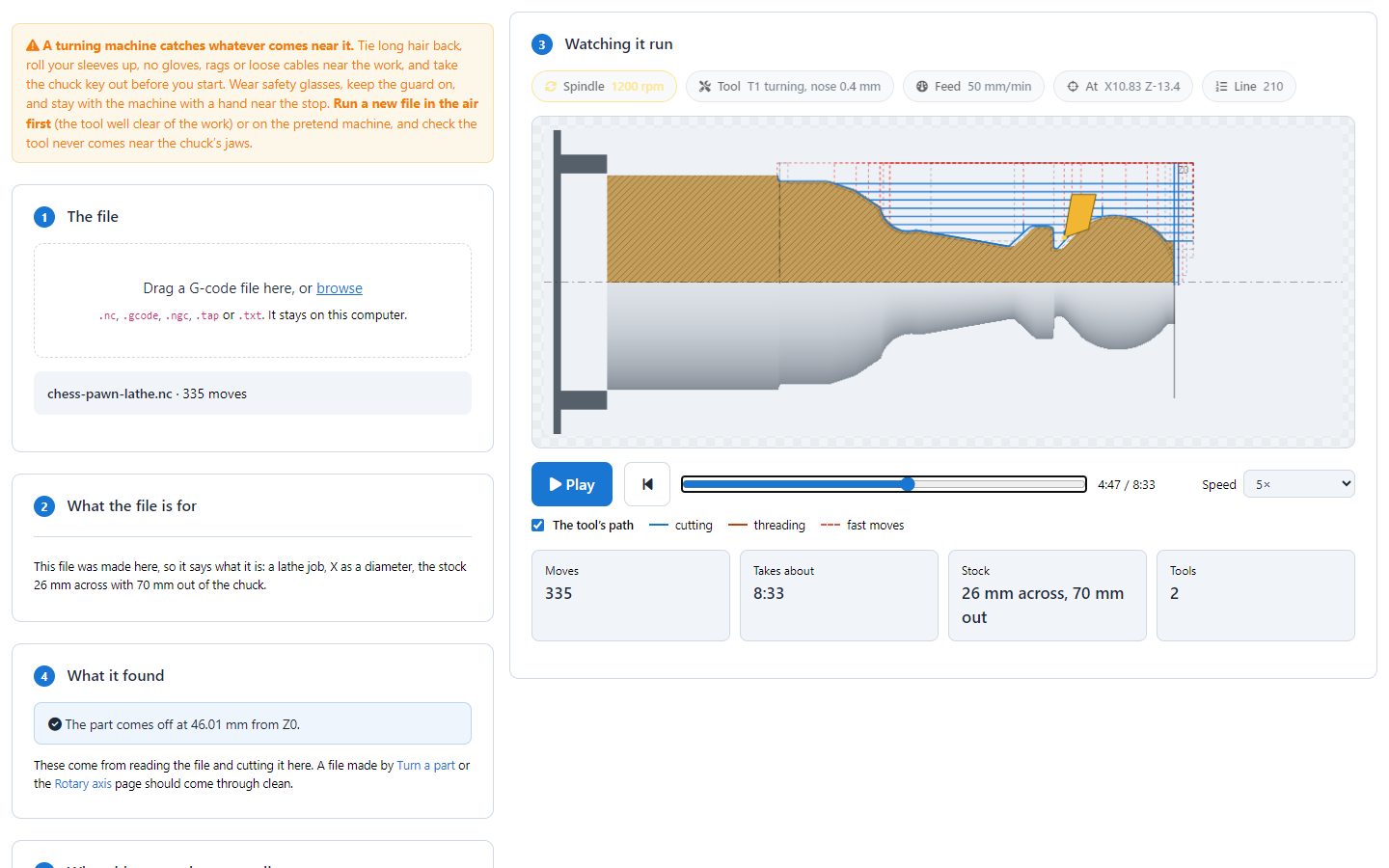
Drop any G-code file on it, or press Watch it run on Turn a part or Rotary axis. It reads the file itself, not the page that made it, so it is a real check of any lathe or rotary file.
- What the file is for: a file made here says so in its first lines. For any other file, choose a lathe or a rotary axis, and the X mode or the axis letter.
- Play, drag the slider, and choose the speed, from real time to 300 times. The chips show the spindle, the tool, the feed, where the tool is and the line of the file. At a tool change it says which tool.
- What it found: a fast move that goes through the work, the spindle not on before the first cut, and whether the part comes off at the parting cut.
- It shows what each move takes off, with the tool's real shape. It cannot feel the cut: chatter, a blunt tool, a tool not on centre or work slipping in the chuck do not show here.
- The time is distance over speed. Tool changes and pauses take as long as you do.
Running it on the machine
9Send to machine: a lathe
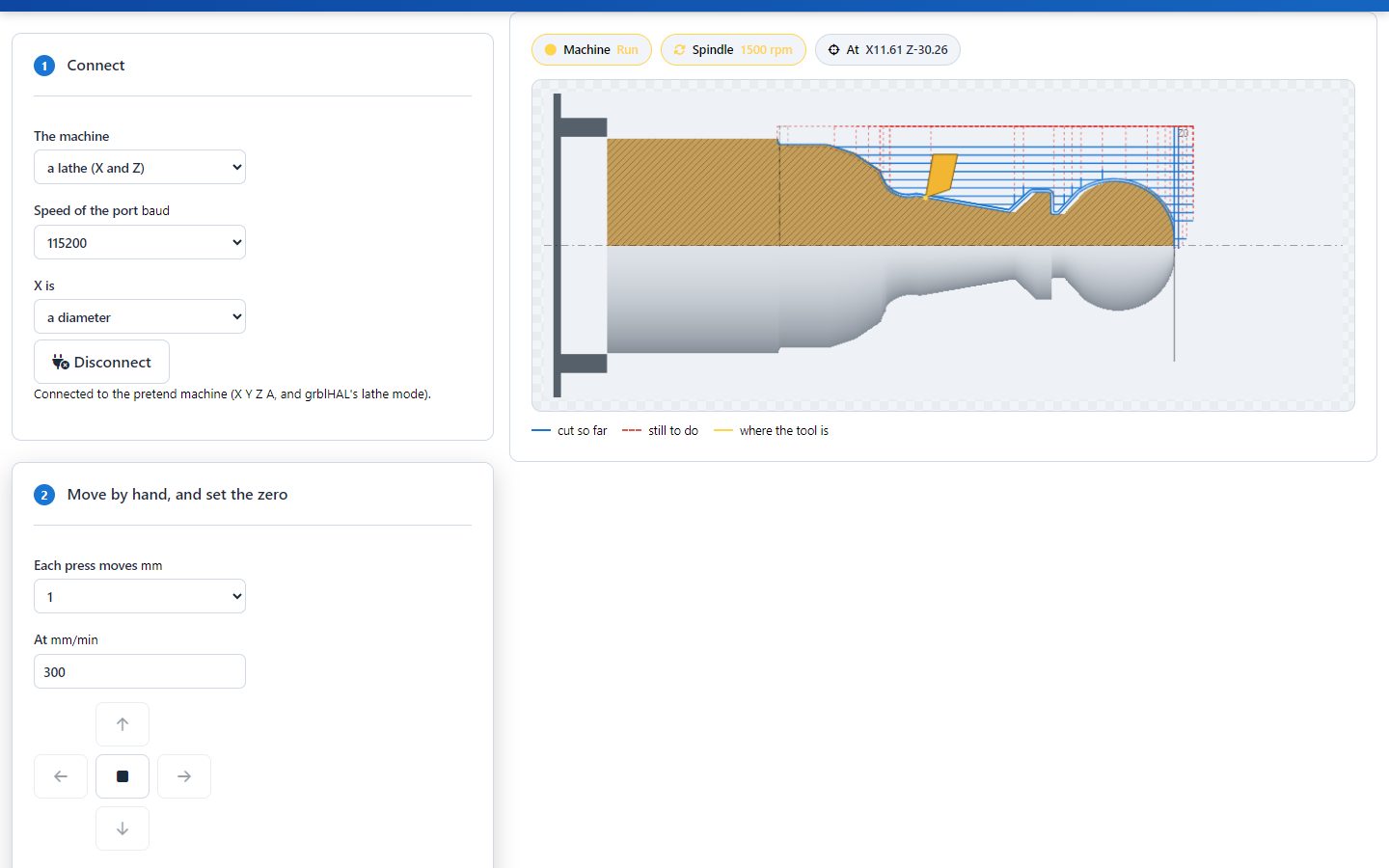
Chrome or Edge on a computer (or the app), with the machine on a USB cable. Nothing to install. Try everything first with Try it with a pretend machine.
- Connect: choose a lathe, the port speed (usually 115200) and whether X is a diameter or a radius, then Connect the machine and choose the port.
- Move by hand: up and down move X (across), left and right move Z (along). Choose how far each press goes and how fast.
- Set X: take a light cut along the work, leave X where it is, measure the diameter, type it in and press Set X from it. In radius mode the page halves it for you.
- Set Z: touch the tool on the finished end face and press The end face is Z0.
- The spindle: a speed, then On (it asks first) and Off.
- The job: drop the file, or come here from Turn a part. Start runs it; Pause holds it; Stop resets the board at once. At a tool change the job waits: change the tool and press Start.
$32=2. Then X can be a diameter (G7), and threads
(G33) need a spindle encoder. Plain GRBL has no lathe mode: X is then whatever the board moves.10Send to machine: a rotary axis
- Connect: choose a router with a rotary axis, the axis letter and what one turn is. The page warns you if the job was made for a different letter or turn.
- Move by hand: X along the work, Z up and down, the turn buttons for the rotary axis (choose how many degrees a press turns), and Y towards you or away to find the centre line.
- Set the zeros: Left end is X0 at the stock's chuck end, Over the centre is Y0 right over the axis, Z0 here on the centre line or on top of the stock (as on the Rotary axis page), and This turn is 0.
- The job: as on a lathe: Start, Pause and Stop. Tick Stop the spindle while paused if you want that.
When something is wrong
11Problems and fixes
| What you see | What to do |
|---|---|
| Parts come out twice too big or too small across | X mode: the file and the machine must agree on a
diameter or a radius. grblHAL needs $32=2 for diameters. |
| "There is no room at the end of the thread" | Press Add a groove: with a thread on, it puts a relief groove at the thread's end. |
| "The outline goes down more steeply than the turning tool can follow" | Use a tool that can follow a steeper slope and set it in step 3, or make the slope gentler. |
| The page says the part needs more stock out of the chuck | Let more stick out, or make the part shorter. |
| "The parting cut does not go right through" | The grooving tool is not deep enough or not wide enough for the part: check its width and the stock's size. |
| No thread in the file | Threads are left out for Mach Turn and plain GRBL: they cannot keep in step with the spindle. |
| Rotary work is cut off-centre, flats on one side | Y0 is not over the centre line. See the box in chapter 10. |
| The rotary axis turns the wrong way, text comes out mirrored | Swap the axis direction in your controller's settings: a positive turn brings the top towards you. |
| The rotary axis turns too little or too much | One turn is does not match the axis's steps per degree. Check its steps setting, and the letter. |
| Chatter, a rough finish | Less stick-out or the tailstock, a sharper tool, a lighter cut, or a different speed. |
| No port in the list | Use Chrome or Edge on a computer, or the app. Check the cable and close any other sender. |
| Alarm | Press Unlock ($X). Home it if it may have lost its place. |
Still stuck? Write to support@3d-lithophane.com.
12Quick reference
The outline editor
| Do this | What it does |
|---|---|
| Drag a point | Move it |
| Click on the line | Add a point |
| Double-click a point | Take it away |
The G-code
| Word | Meaning |
|---|---|
G7 / G8 | X is a diameter / a radius (lathe) |
M3 S1200 | The spindle on, at 1200 rpm |
G1 X Z F | Cut in a straight line, at F mm/min |
G33 Z K | A thread, K mm on each turn of the spindle |
M0 | Wait: a tool change, carry on with Start |
G1 X A F | Move along and turn the work together (rotary) |
G10 L20 P1 X | Tell the machine where X is now (Set X from it) |
M5 | The spindle off |
$32=2 | grblHAL lathe mode |
$H / $X | Home / unlock after an alarm |
Lathe Maker Studio · 3d-lithophane.com · October 2026