
CNC Router Studio
User Guide
Make G-code for your hobby CNC router, and run it, from one place.
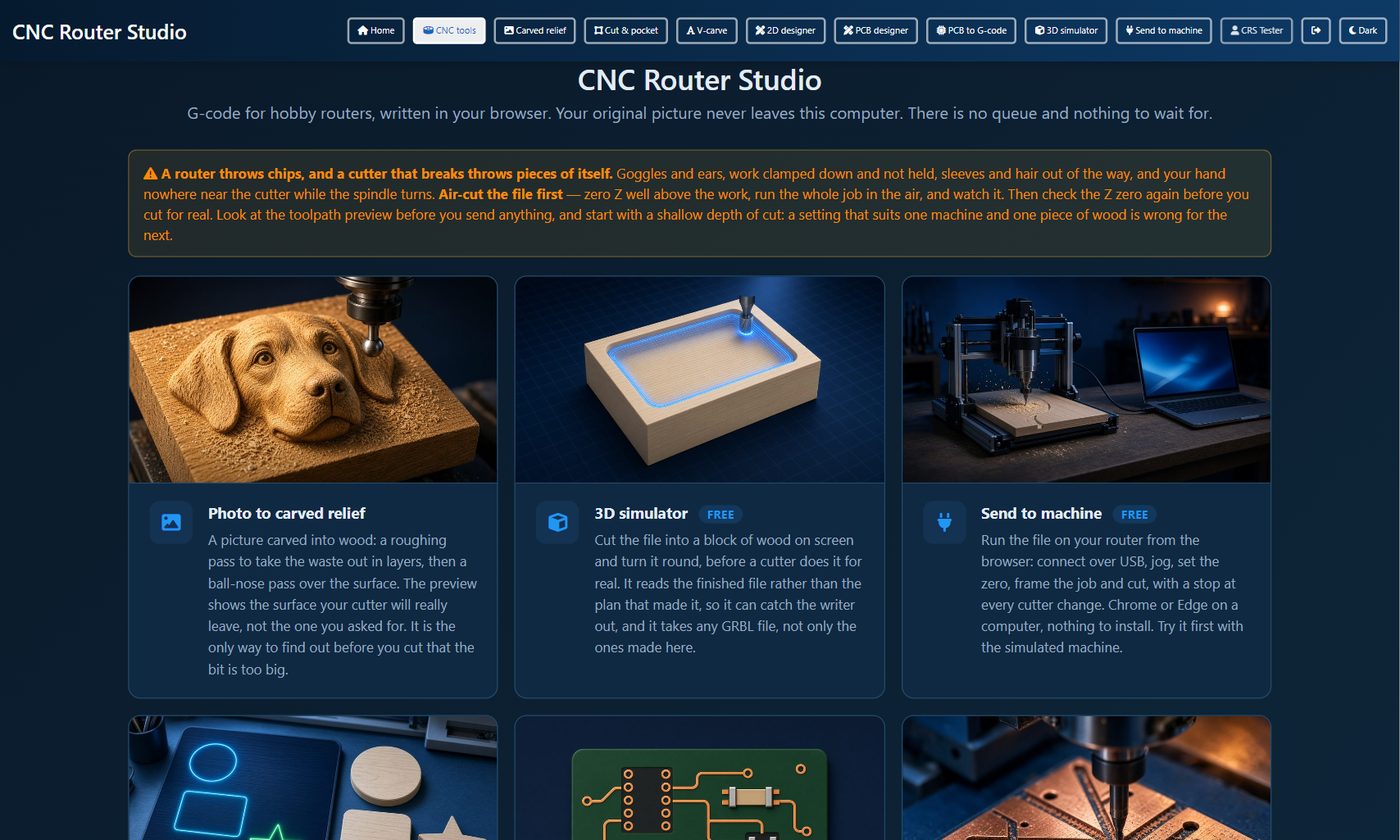
For CNC Router Studio on the website and as the app for Windows and Mac. October 2026.
Contents
- Getting going
- What it is, and getting started
- Safety first
- Send to machine
- Connecting the machine
- Your machine, its settings and limit switches
- Moving it and setting the zero
- Opening and checking a job
- Cutting it
- The height map, for boards that are not flat
- Move and Draw on the preview
- Making G-code
- Photo to carved relief
- Cut & pocket
- V-carved text and outlines
- The 2D designer
- The PCB designer
- PCB to G-code
- The 3D simulator
- When something is wrong
- Problems and fixes
- Keys and quick reference
1What it is, and getting started
CNC Router Studio is a set of tools for hobby CNC routers that run GRBL (most 3018-style machines, and many bigger ones). It does two jobs:
- It makes the G-code: a photo carved as a relief, shapes cut out or pocketed, V-carved lettering, your own drawings in the 2D designer, and circuit boards in the PCB designer.
- It runs the G-code: Send to machine connects to your router over USB, lets you move it and set the zero, and feeds it the job, with a stop at every bit change.
Everything runs on your own computer. Your pictures and drawings are never uploaded.
On the website, or as the app
The same tools are on 3d-lithophane.com (the CNC Router Studio menu) and in the desktop app for Windows and Mac (the Software page). On the website, Send to machine needs Chrome or Edge on a computer, because only they can talk to a USB port. The app has this built in.
Your account and what is free
- Sign in with your free 3d-lithophane.com account, on the website or in the app.
- Free: 2 jobs a day on your live machine and 2 G-code downloads a day. Setting a job up, the previews, the Simulator, the 3D simulator, jogging, Move and Draw are never counted.
- Unlock CNC Router Studio once, for life, for no limits, in the app and on the website. Launch price $24.97 for the first 7 days after the release, then $39. It is bought on its own: it is not part of the Supporter plans.
The usual order
- Make the G-code with one of the tools (or bring your own file).
- Watch it cut in the 3D simulator.
- Open Send to machine, connect, check the Machine tab once, and set the zero.
- Frame the job, then cut it.
2Safety first
- Stop on the page is not an emergency stop. It asks the machine to stop through the same cable as everything else. Keep the machine's own emergency stop, or its power switch, within reach.
- Never leave a job running alone, and keep the page or the app open while it cuts.
- Air-cut a new file first: set Z zero well above the work and run the whole job in the air.
- Check the Z zero again before you cut for real, and after every bit change.
- Start shallow and slow. There is no table of "correct" feeds in these tools on purpose: what suits one machine, bit and piece of wood is wrong for the next.
- Z0 is always the top of the material in the files these tools make.
Send to machine
3Connecting the machine
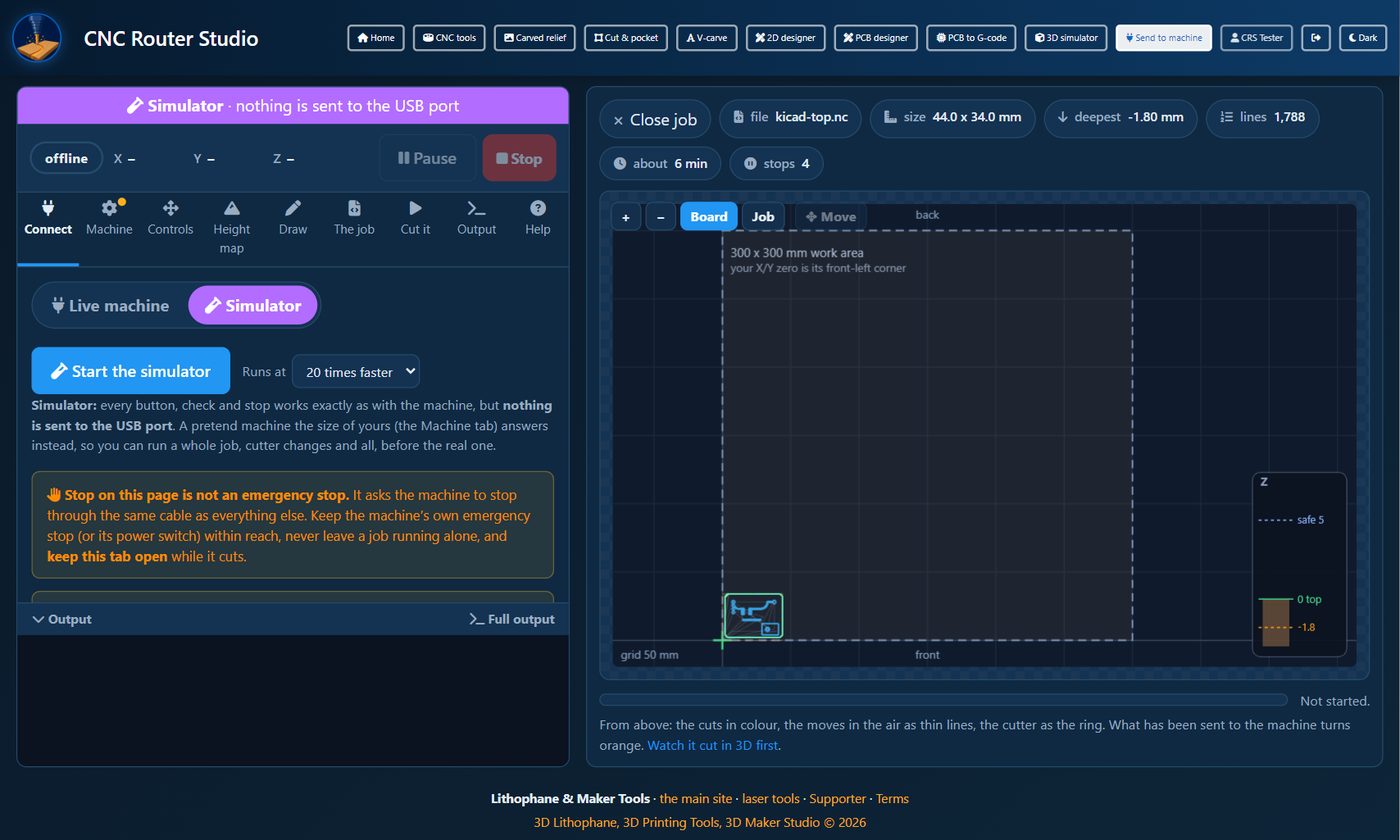
Send to machine is split in two halves. On the left, the tabs: Connect, Machine, Settings, Controls, Height map, Draw, The job, Cut it, Output and Help. On the right, the preview: the job from above, or, before a job is open, the live view of where the machine goes. The bar at the top always shows the machine's state (Idle, Run, Hold, Alarm), where it is, and the Pause and Stop buttons.
- Plug the router in by USB and switch it on.
- Close any other program that uses the machine (your usual sender), or the port is busy.
- Choose Live machine, leave the speed at 115200 (GRBL's), and press Connect the machine.
- Pick the machine in the list of ports. It is often called USB Serial, CH340 or Arduino.
The machine says hello (its GRBL version shows in the output), and the page reads its settings.
GRBL 0.9 and 1.1
Both work. On an older GRBL 0.9 the page jogs with ordinary moves, and the feed and spindle buttons change the speeds in the lines it has not sent yet (0.9 has no speed buttons of its own).
4Your machine, its settings and limit switches
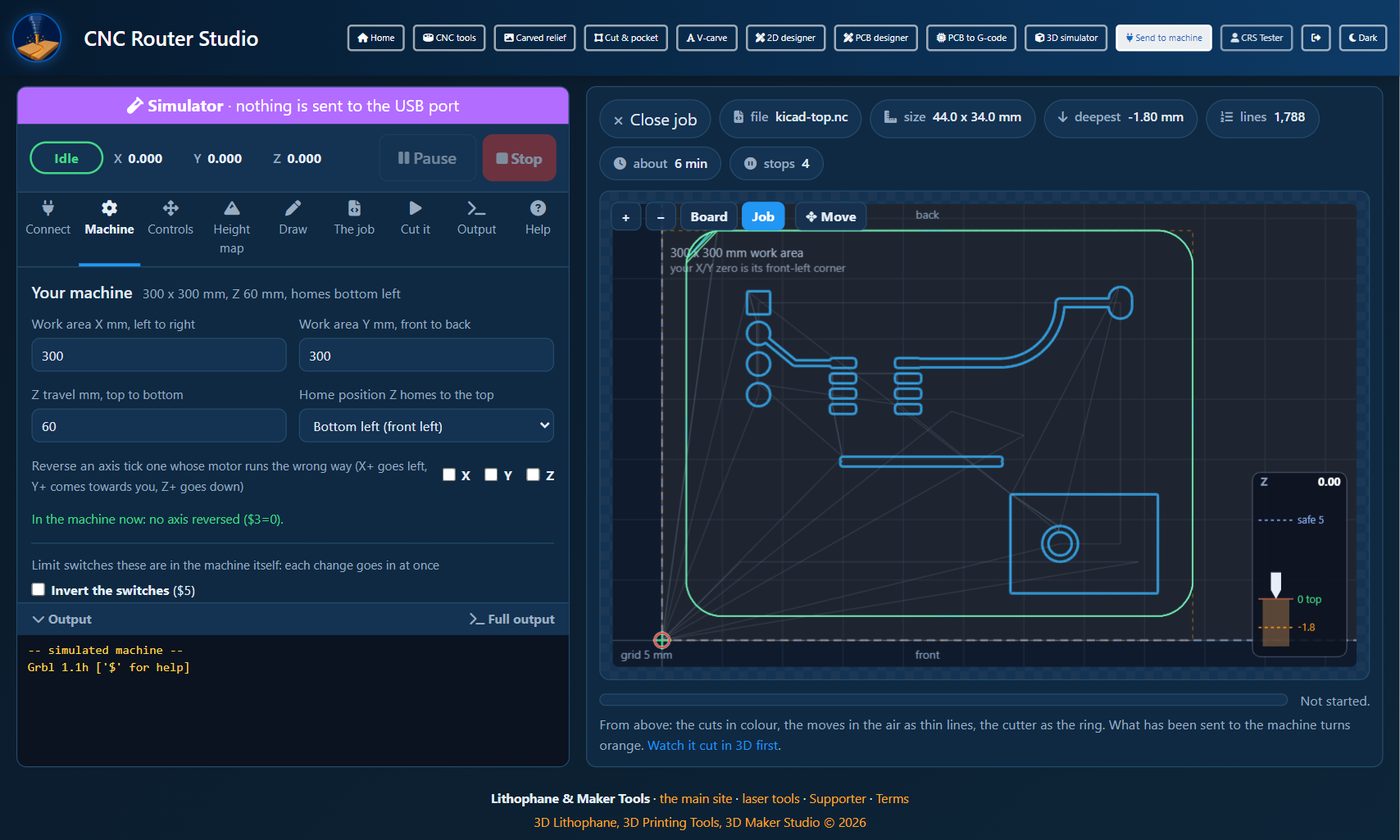
Fill in the Machine tab once. It is saved in this browser (or the app).
| Setting | What it is |
|---|---|
| Work area X, Y | How far the machine can move left to right and front to back, in mm. |
| Z travel | How far Z can move, top to bottom. |
| Home position | The corner the machine homes to, if it has switches. |
| Reverse an axis | Tick an axis whose motor runs the wrong way (X+ should go right, Y+ away from you, Z+ up).
This is GRBL's $3, so it goes into the machine itself. |
| Limit switch settings | Invert the switches ($5), hard limits ($21) and homing
($22), shown as the machine has them. Each change goes into the machine at once. |
Read from the machine takes the sizes from the machine's own settings; Send these to the machine stores yours in it.
Limit switches: fitted or not
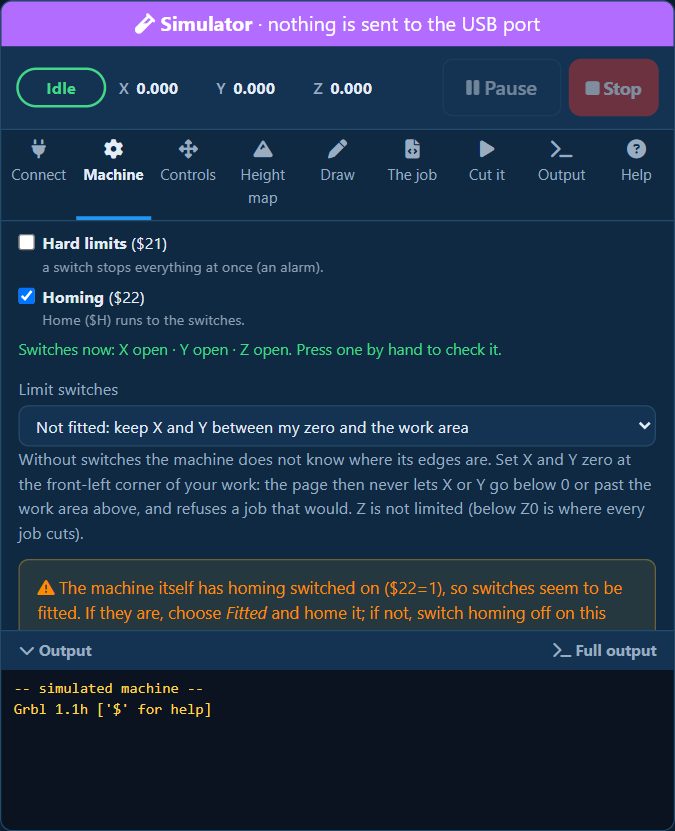
- Fitted: home the machine (Home ($H)) after switching it on. Then the page knows where the edges are, and keeps jogs and Move inside them.
- Not fitted (the safe default): the machine does not know where its edges are, so the page puts up walls. Set X and Y zero at the front-left corner of your work: X and Y then never go below 0, nor past the work area. A jog stops at the wall, and a job that would cross it is not started, with what to change. Z is not limited, because below Z0 is where every job cuts.
The page also reads the machine: if homing or hard limits are switched on in GRBL but you chose Not fitted, it says so, and the other way round.
Z check: when it cuts deeper than you set
The files made here go exactly as deep as you set. If a cut comes out deeper, the cause is in the machine, and the Z check at the bottom of the Machine tab finds it:
- It shows the machine's Z settings: steps per mm (
$102), top Z speed ($112) and how quickly Z speeds up ($122), and says when the speed looks high for a small router. - Move Z up 10 mm, and measure how far it really went with a ruler or calliper. Type
that in: if it is not 10, the page works out the right
$102and Store it in the machine puts it in. Move it again to check. - Lay a sheet of paper on the material and bring the bit down until the paper just stops sliding.
Up and down 20 times moves Z up and back at full speed and stops where it started. If
the bit now pins the paper, Z loses steps going up and every pass ends up deeper than the last: lower
$112and$122.
Also tighten the collet nut firmly (a bit sliding down cuts deeper as the job goes on), and set Z zero again after every bit change.
All the settings: the Settings tab
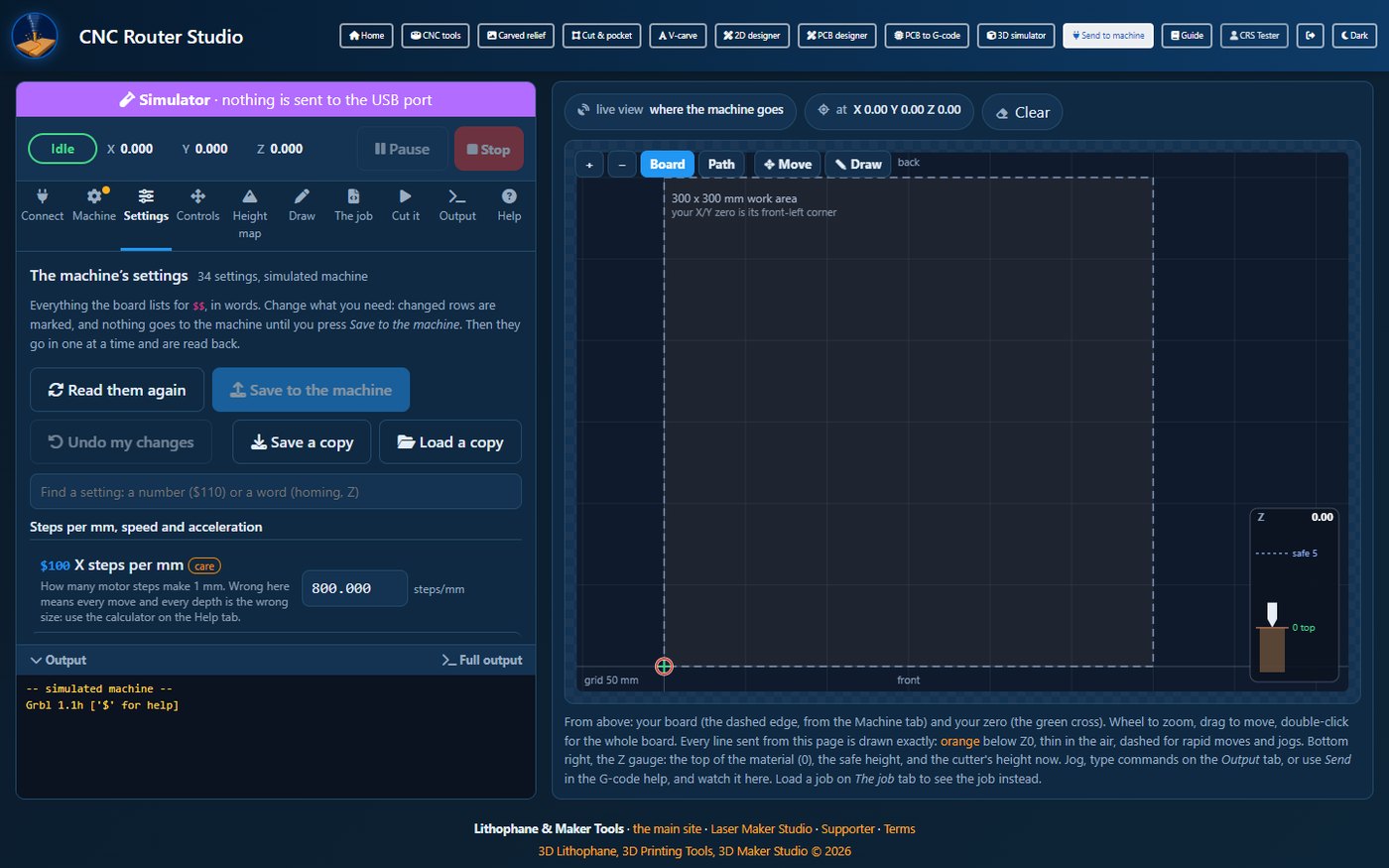
The Settings tab shows everything the connected board lists for $$, grouped and in words:
steps per mm, speeds and acceleration for each axis, travel and limits, homing, the spindle, the step signals and the
reports. Each one says what it does and its unit; the ones that change how the machine moves are marked care.
- Change what you need: type a number, or tick a box (on, or the axes it applies to). A changed row is marked and shows what the machine has now. A value that will not do (a letter, or too small) is shown in red and cannot be saved.
- Press Save to the machine. It lists the changes, and warns about the risky ones (steps per mm, a reversed axis, homing with no switches, laser mode on a router). Then they go in one at a time and are read back, and it says which ones the machine took.
- Undo my changes puts the boxes back as the machine has them.
Type in Find a setting to narrow the list: a number such as $110, or a word such as
homing. Save a copy keeps every setting in a text file, and
Load a copy fills the boxes from one (to put a machine back as it was, or to copy a
machine's settings to another); nothing is sent until you press Save. Settings the board does not have are left out.
On GRBL 0.9 there is no $30 to $32, and $10 has five report options.
The stepper calculator
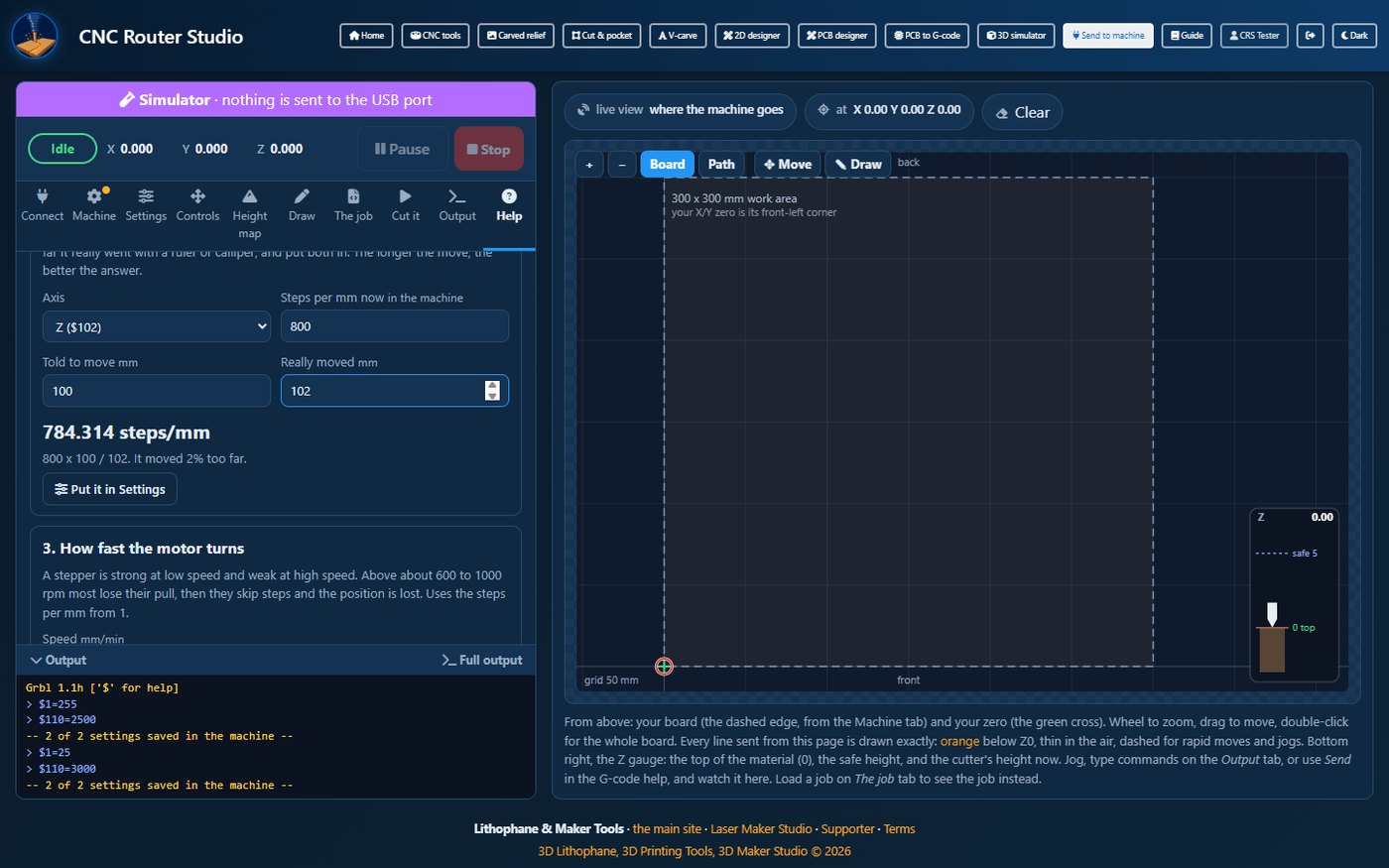
At the bottom of the Help tab. Four parts:
- Steps per mm from the parts: the motor (200 steps a turn for most), the microstepping set on the driver, and the drive: a lead screw or ball screw (its lead, the mm it moves in one turn), a belt and pulley, or a rack and pinion, with any reduction between the motor and the screw. A T8 lead screw with 16 microsteps is 400 steps per mm.
- Fine tune from a measured move: jog an axis a long way, measure how far it really went, and it works out the right steps per mm (what it has now, times the distance asked, divided by the distance measured).
- How fast the motor turns at a speed you choose, and the steps a second that needs. Above about 600 to 1000 rpm most steppers lose their pull and skip steps.
- Driver current (Vref): the voltage to set on the little screw of an A4988, DRV8825 or TMC2208/2209 driver for your motor's current. Big drivers (TB6600, DM542) use DIP switches instead.
Put it in Settings fills that axis on the Settings tab ($100 X,
$101 Y, $102 Z); press Save to the machine there to store it.
5Moving it and setting the zero
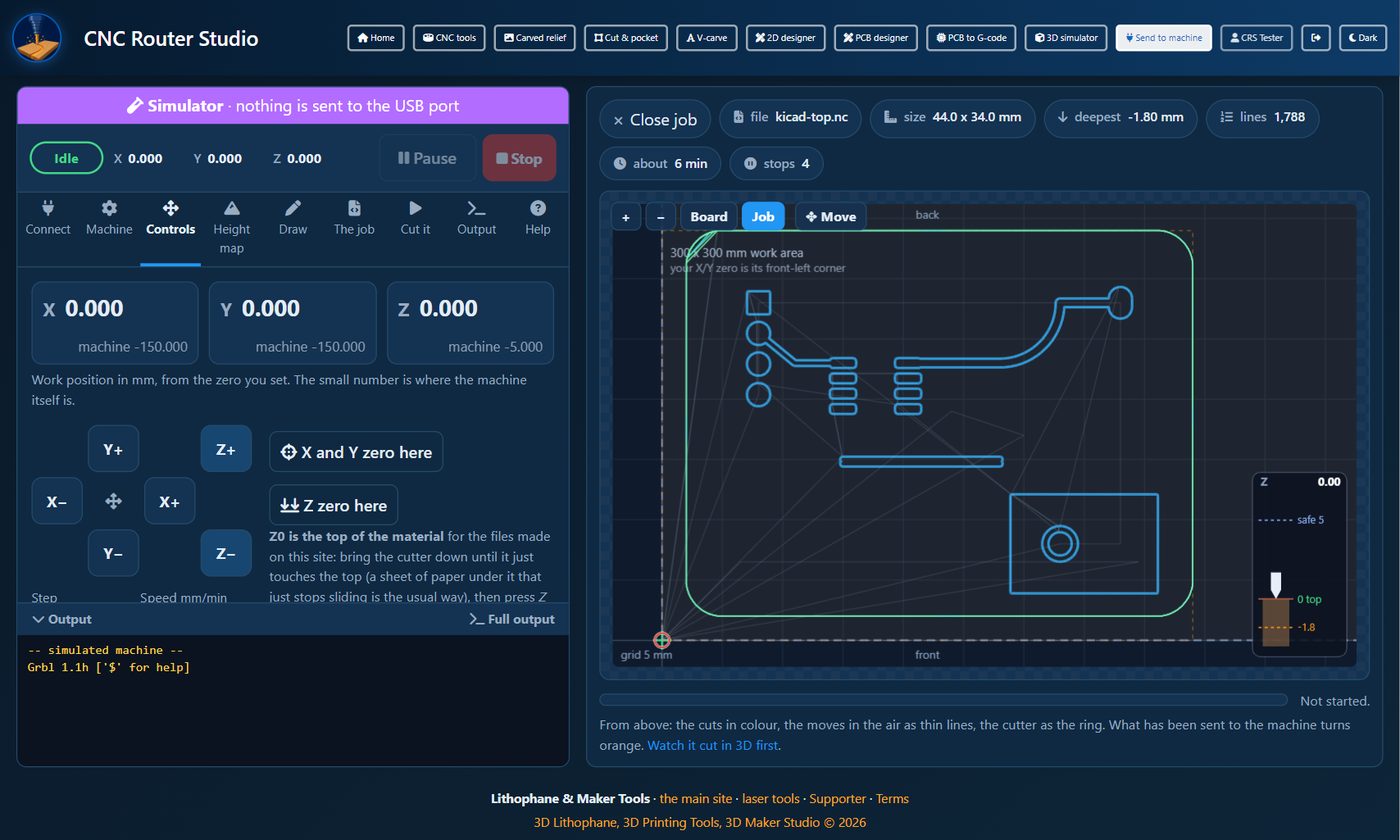
The big numbers are the work position: from the zero you set. The small number under each is where the machine itself is.
Jogging
- The arrow buttons move X and Y; Z+ and Z− move Z.
- Choose the step (0.1, 0.5, 1, 5, 10, 20, 30 or 50 mm; it is kept for next time) and the speed. Z moves at a third of the speed.
- On the keyboard: the arrow keys move X and Y, Page Up and Page Down move Z (while the pointer is not in a box).
Setting the zero
- Jog the bit over the front-left corner of your work and press X and Y zero here.
- Bring the bit down until it just touches the top of the material. A sheet of paper under it that just stops sliding is the usual way. Use the 0.1 mm step for the last bit.
- Press Z zero here.
Also here: Go to X/Y zero, Home ($H), Unlock ($X) after an alarm, Reset, and the safe height for moves in the air.
The spindle
Under the controls, the Spindle slider sets a speed from 0 to 12000 rpm.
Spindle on starts it at that speed, and while it runs it follows the slider;
Spindle off stops it. During a job the file sets the speed (change it on the Cut it tab).
GRBL turns the speed into power against its full speed: $30 on GRBL 1.1, usually S1000 on GRBL 0.9. A speed
above that runs at full speed, and the page says so.
6Opening and checking a job
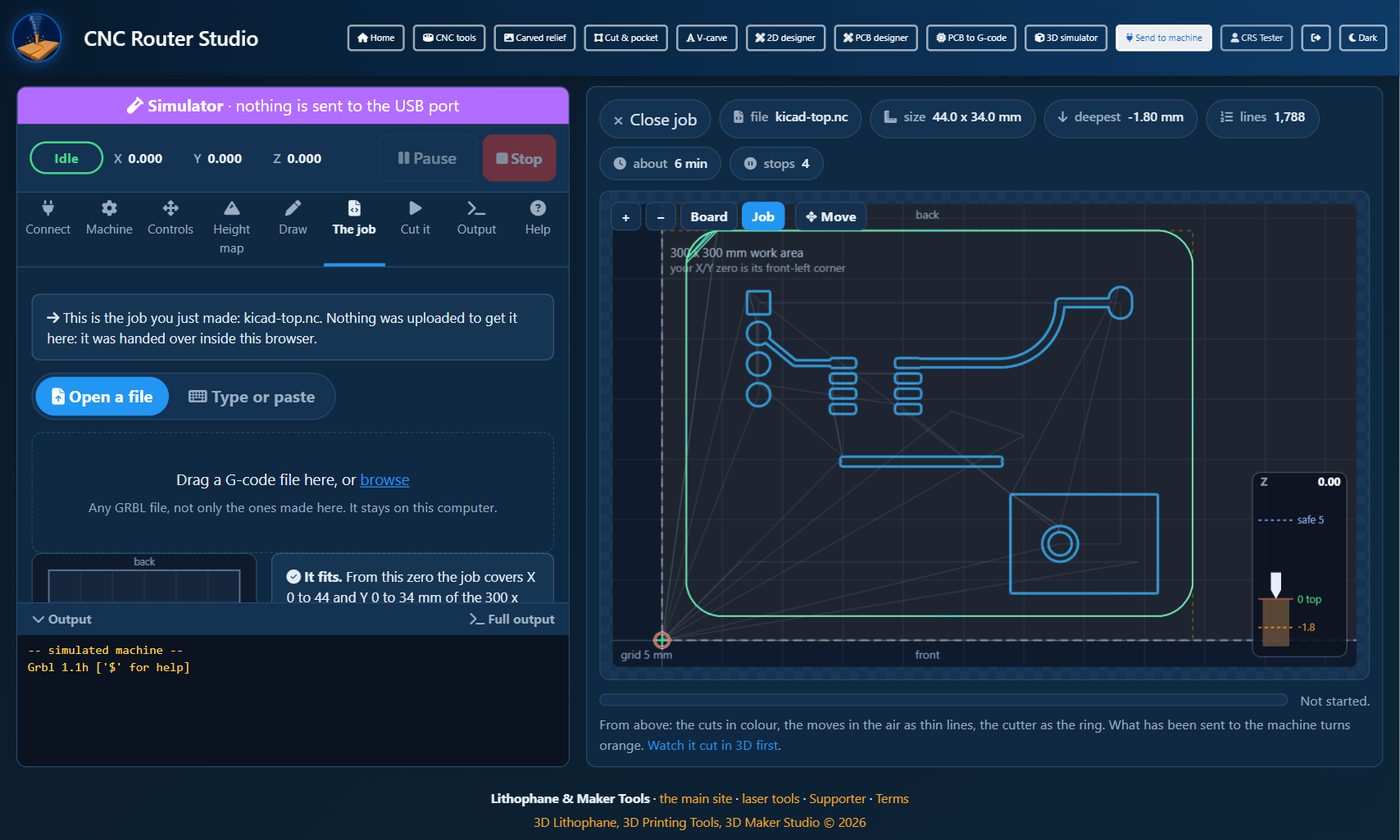
A job made with one of the tools arrives here by itself when you press Send to machine on that tool. Otherwise:
- Open a file: drag a G-code file onto the box, or browse. Any GRBL file works, not only the ones made here.
- Type or paste: an editor for G-code, with line numbers and G-code help (every command, what it does, and examples to insert). Press Use this G-code or Ctrl+Enter.
The checks
- The chips above the preview: the file's size, its deepest cut, its lines, about how long it takes, and how many stops (bit changes) it has.
- It fits (or not): where the job lands from your zero on the work area, and the bed drawn from above.
- Anything in the file worth a look: cutting with the spindle stopped, no pause after the spindle starts, and the like.
Frame the job traces the job's outline at the safe height with the spindle off, so you can see where it lands on the material before anything is cut.
7Cutting it
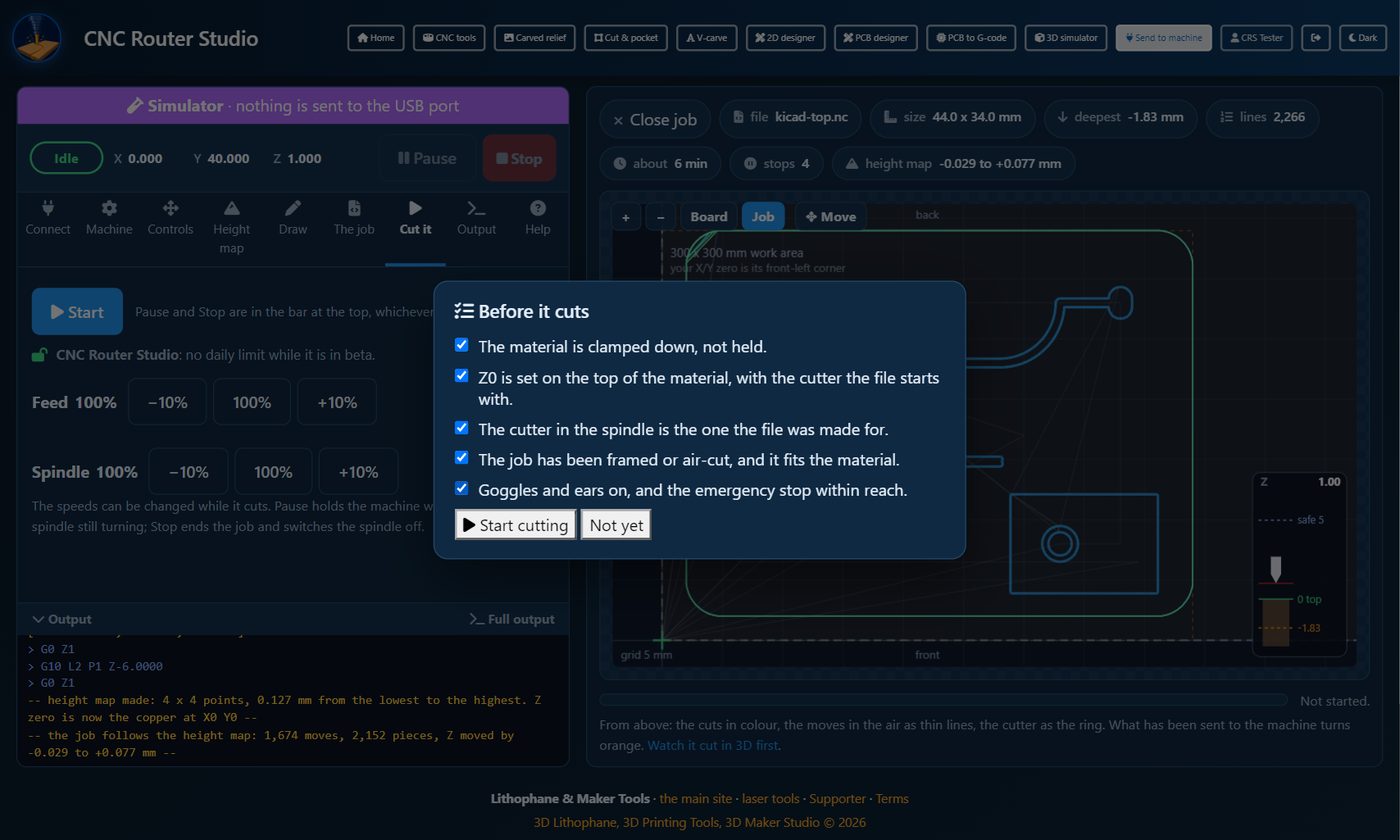
- Open the Cut it tab and press Start.
- Tick the five checks (clamped, Z0 on the top, the right bit, framed, goggles and the emergency stop), then Start cutting.
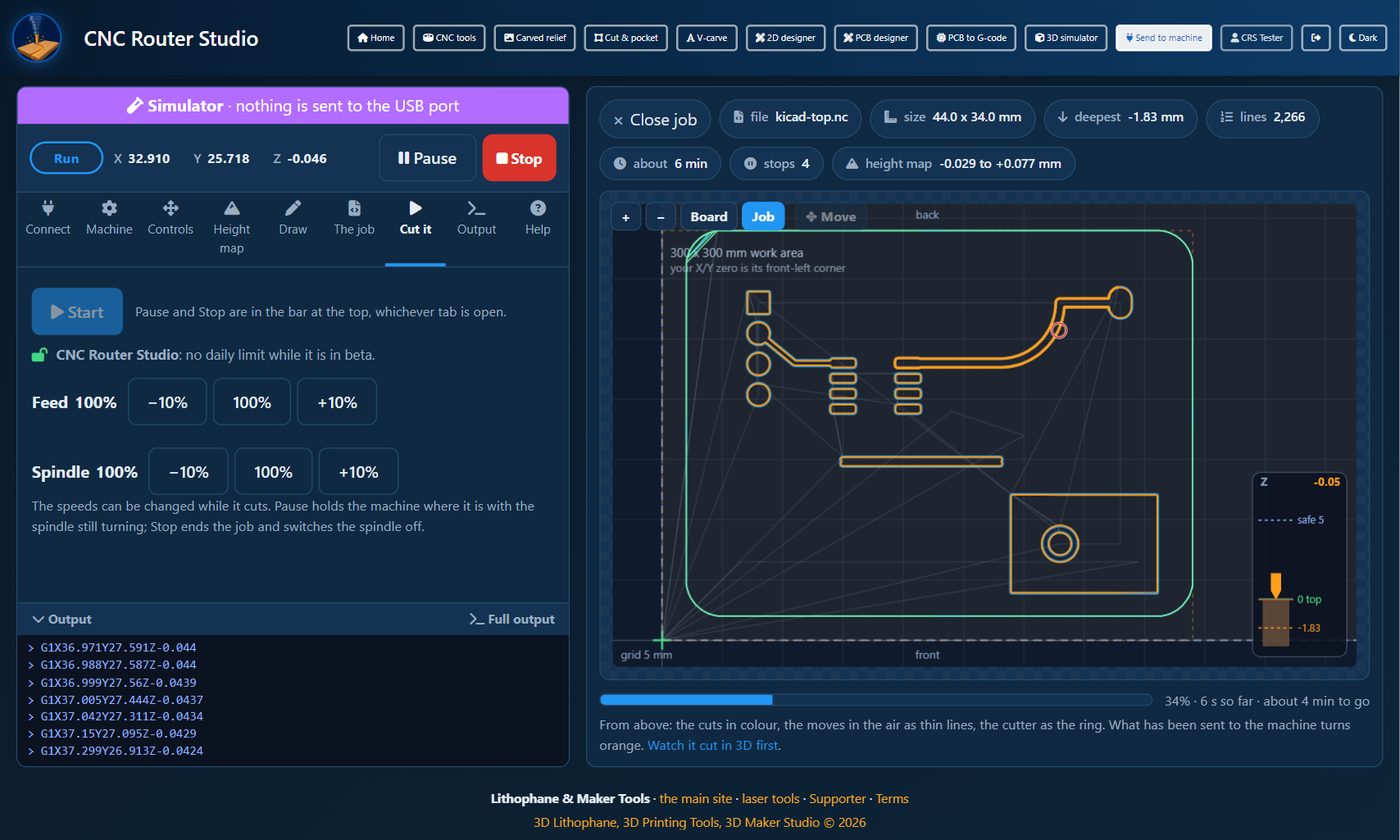
- Pause holds the machine where it is, with the spindle still turning. Press it again to go on.
- Stop ends the job: it holds the machine, then resets it, which empties its buffer and stops the spindle. It should keep its place; if it reports an alarm, unlock it, and home it if it may have lost its place.
- Feed and Spindle: −10%, 100% and +10% while it cuts.
Bit changes
When the file stops for a new bit (M0, M1 or M6), the page stops in front of it
and says which bit to fit. The machine is then yours: jog clear, change the bit, set Z zero again on the
top of the material, and press Carry on with the job.
The output
The Output tab shows everything said to and by the machine, with a box to type commands (for example
$$ for its settings). Save keeps it as a text file. The latest lines also show
under every tab.
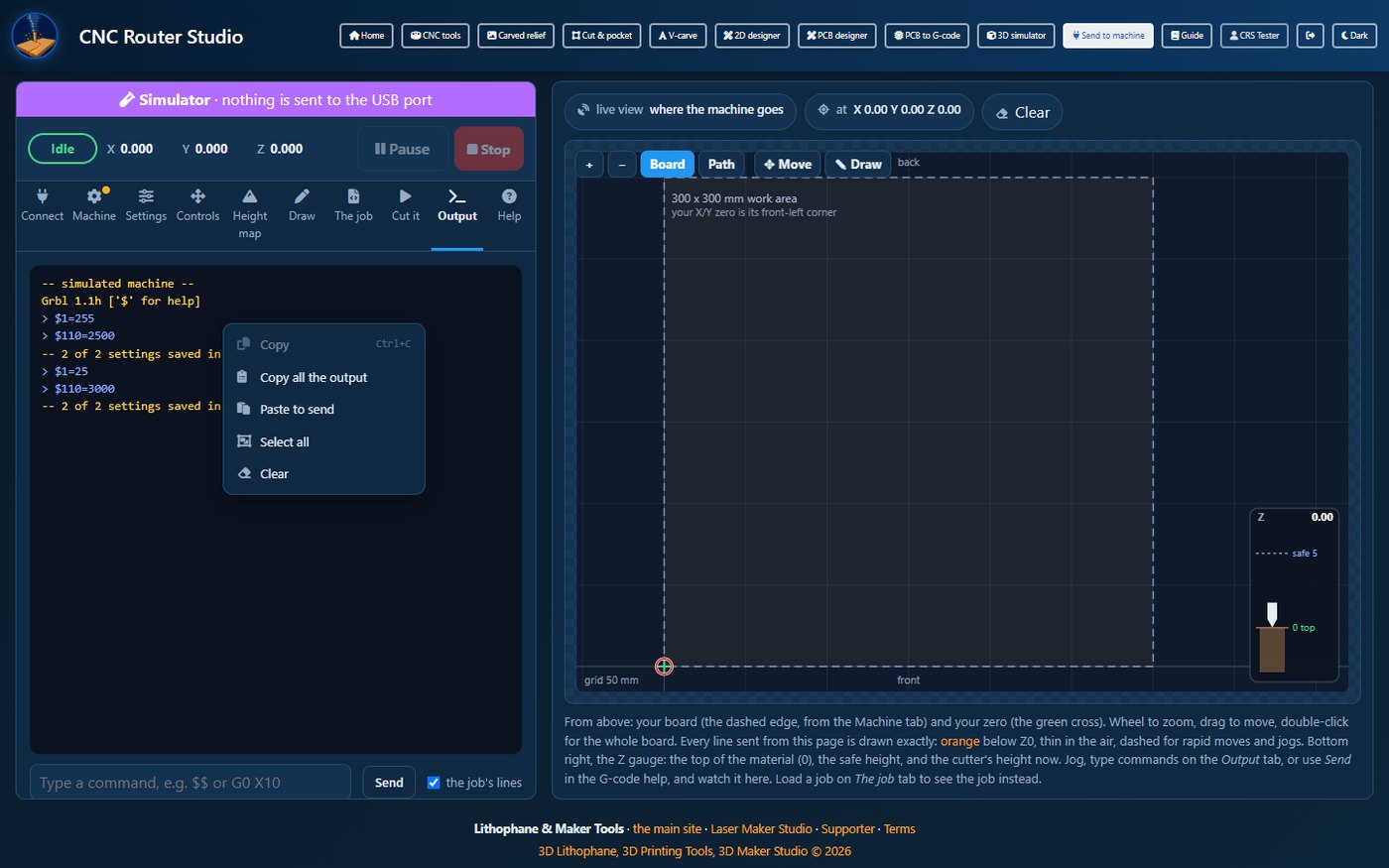
Right click on the output (on the Output tab or the strip under the other tabs) for Copy (what you selected), Copy all the output, Paste to send, Select all and Clear. A pasted line waits in the command box for you to check and send. Several lines (pasted there, or with Ctrl+V in the command box) are sent one at a time after you say yes; they run as they are, so for a whole job use The job tab.
8The height map, for boards that are not flat
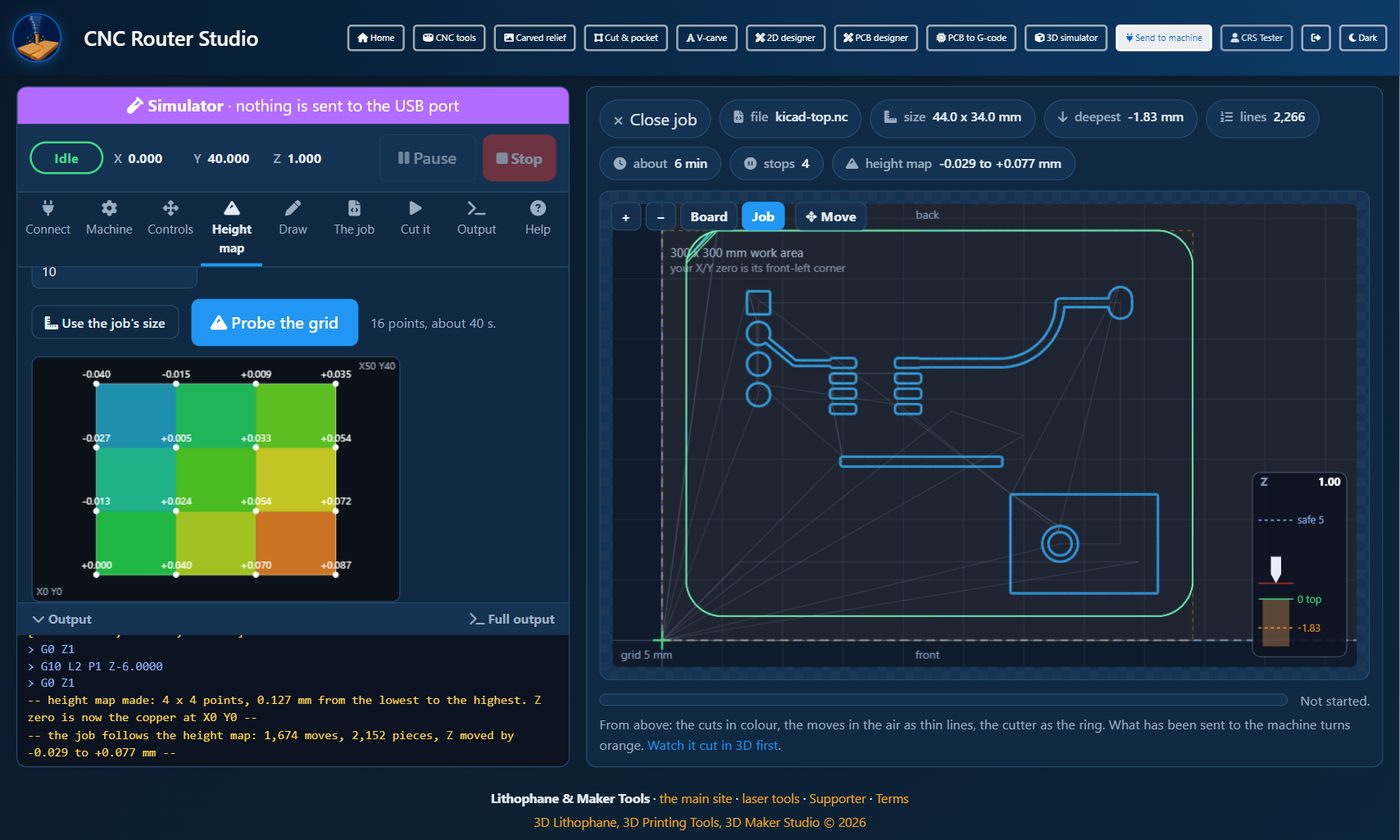
A circuit board, or any thin sheet, is never quite flat. Isolation routing on a PCB is only 0.05 to 0.1 mm deep, so a board 0.1 mm higher at one end is cut right through there and missed at the other. The height map fixes that: the probe touches the board at a grid of points, and every job then follows the board.
The probe
A crocodile clip on the bit and a wire on the copper (or a metal plate on the work), to the controller's probe pin and ground. Before the first grid, test it: start Zero Z with the probe here with the wire held away, and touch the wire to the clip while the bit comes down. It must stop at once. If it does not, press the machine's emergency stop and check the wiring.
Probing
- Set X and Y zero where the job starts.
- Zero Z with the probe here: the bit goes down slowly until it touches, and that is Z0.
- Set the area (Use the job's size fills it in from the open job) and the points across and front to back. 4 by 4 is plenty for a small board.
- Probe the grid. When it finishes, Z zero is set on the copper at the first point (front left).
- Jobs follow the height map is ticked by itself: every job's depths now follow the board. The job shows a height map chip.
9Move and Draw on the preview
Once connected, and with no job open, the right half shows the live view: every move the page sends, drawn exactly, with your board and your zero. The wheel zooms, a drag moves the view, and a double-click shows the whole board. Bottom right, the Z gauge shows the top of the material, the safe height and where the bit is.
Move
Press Move on the preview: a click sends the machine to that point, and a drag makes it follow the pointer. Esc stops it at once. The strip at the bottom says whether the bit is in the air or cutting, with its own speed. Without limit switches, Move stops at the walls too.
Draw, then cut
The Draw tab lets you draw a shape on the live view and cut it straight away:
- Pick the bit, and how you draw: Freehand (press and drag) or Point by point (click each corner).
- Choose where it cuts: Centre (on the line), Outside (cut a part out), Inside (a hole) or Pocket (hollow out the inside).
- Set the depth, each pass, the feed, the plunge and the spindle speed.
- Make the cut: it becomes the job, with the checklist, Pause and Stop as any job.
Making G-code
10Photo to carved relief
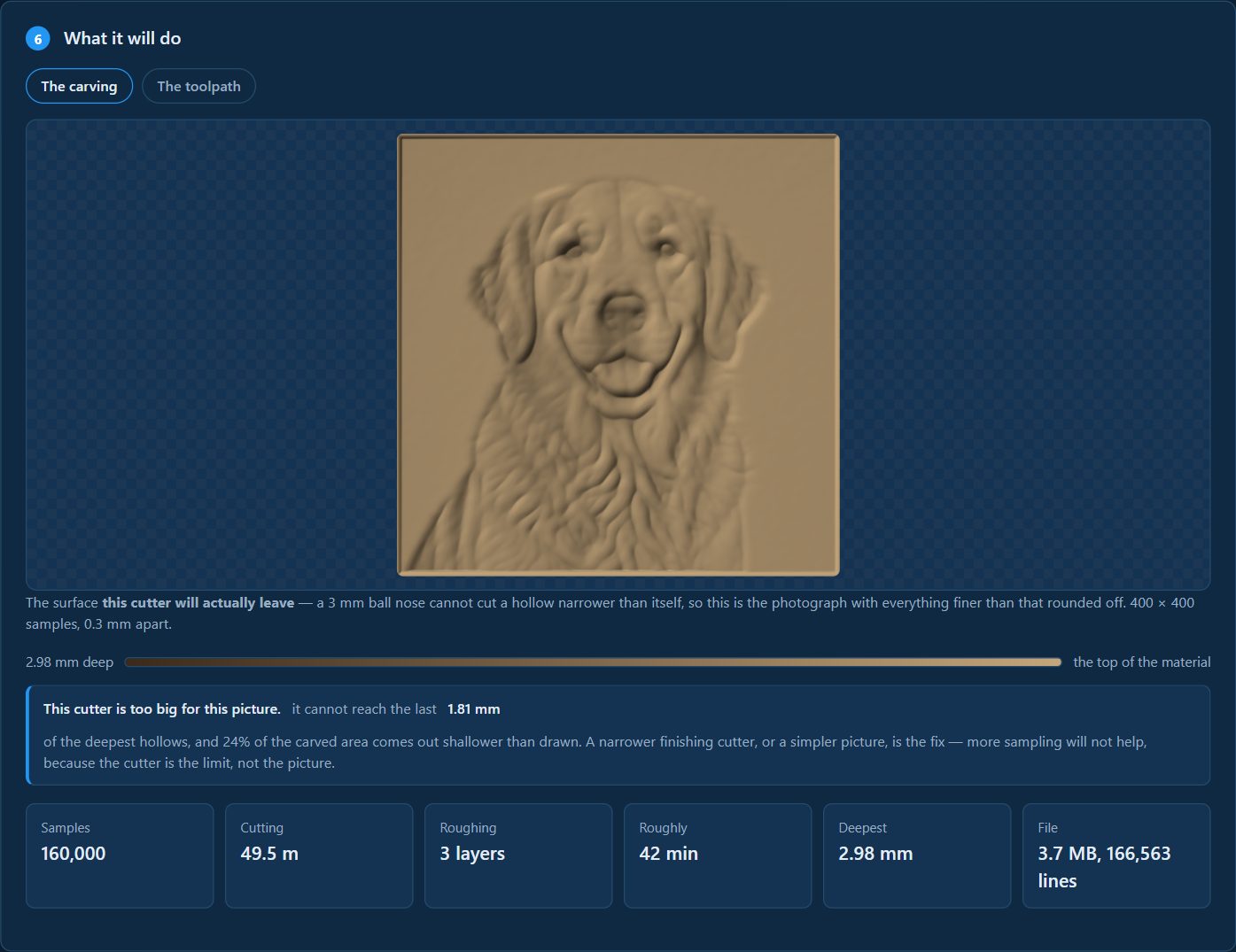
A picture carved into wood: light parts stand proud, dark parts are cut away. A roughing pass takes the waste out in layers, then a ball-nose pass goes over the surface.
- The picture: a clear subject on a plain background carves best. It stays on your computer.
- The shape to carve: brightness, contrast, gamma and smoothing, watching the preview.
- Size on the material, and how deep.
- The cutters: the finishing bit (a ball nose is the one for a relief) and the roughing bit.
- Your machine: the bed, the corner of the zero, the feeds and the spindle speed.
- What it will do: the carving as the bit will really leave it, not as you asked for it. If the bit is too big for the detail, it says so, before you cut.
- The G-code: download it, watch it cut in 3D, or send it to the machine.
11Cut & pocket
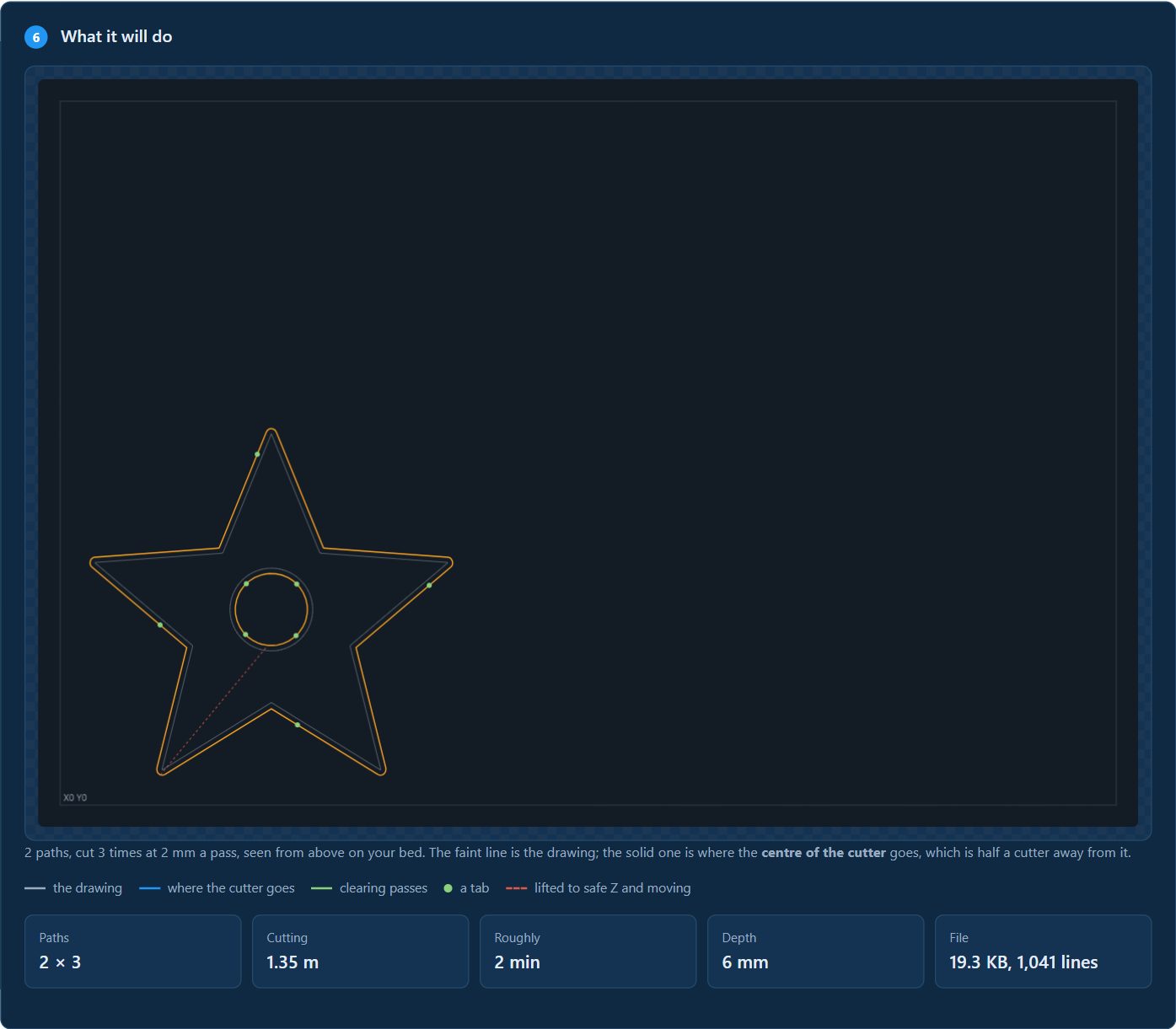
Cut a shape out of the material, or hollow one into it, from an SVG (best) or a PNG or JPG that is traced to outlines first.
| Operation | What it does |
|---|---|
| Cut it out | The bit runs outside the line: the shape you drew is the part you keep. |
| Cut the hole | The bit runs inside the line: a hole the size you drew. |
| Clear a pocket | Hollows out the inside to the depth you set. |
| Score on the line | No offset: the middle of the bit follows the line. |
- Depth and depth per pass: the cut comes off in layers. For a cut-out, the depth is the material's thickness plus a little.
- Lead-in ramp: the bit slopes into each pass instead of plunging.
- Holding the part down: tabs, small bridges left on the last pass, so the part is still there when the cut finishes. Cut them with a knife afterwards.
The offsetting is real, not approximate: a shape narrower than the bit simply has no path, and the page says how much of your drawing that applies to.
12V-carved text and outlines
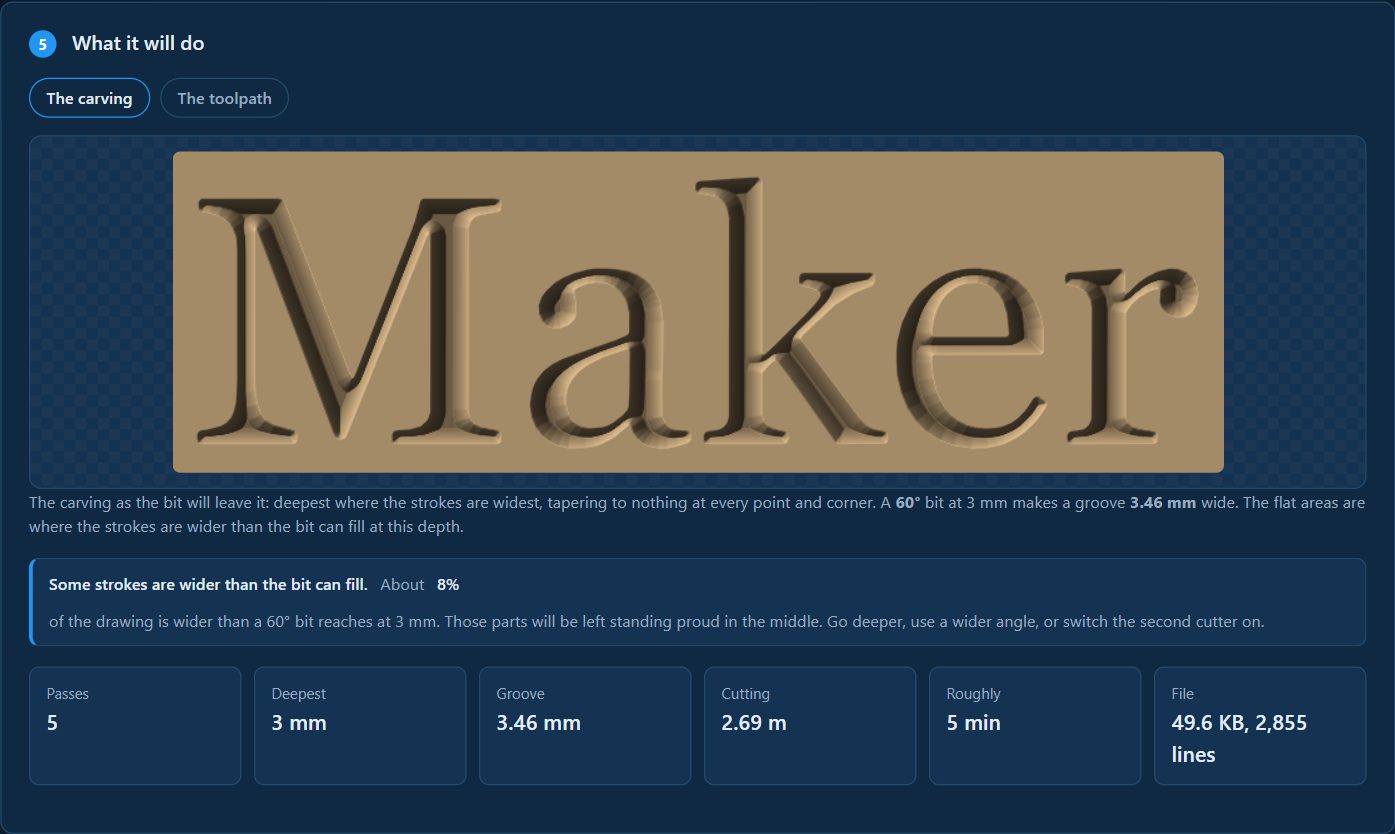
The one that makes letters look cut rather than routed: with a V-bit, the depth follows the width of each stroke, so a serif tapers away to nothing and every inside corner comes to a true point.
- What to carve: type the words and pick a font (a serif face is the classic), bold or italic, and press Use these words. Or drop a drawing.
- The V-bit: its angle (60° is the usual choice for lettering), its diameter, the deepest it may go, and the step between passes.
- When a stroke is too wide for the bit, the middle is left standing: a second, flat cutter can clear it.
- Size and where it goes, your machine, then the preview and the G-code.
13The 2D designer
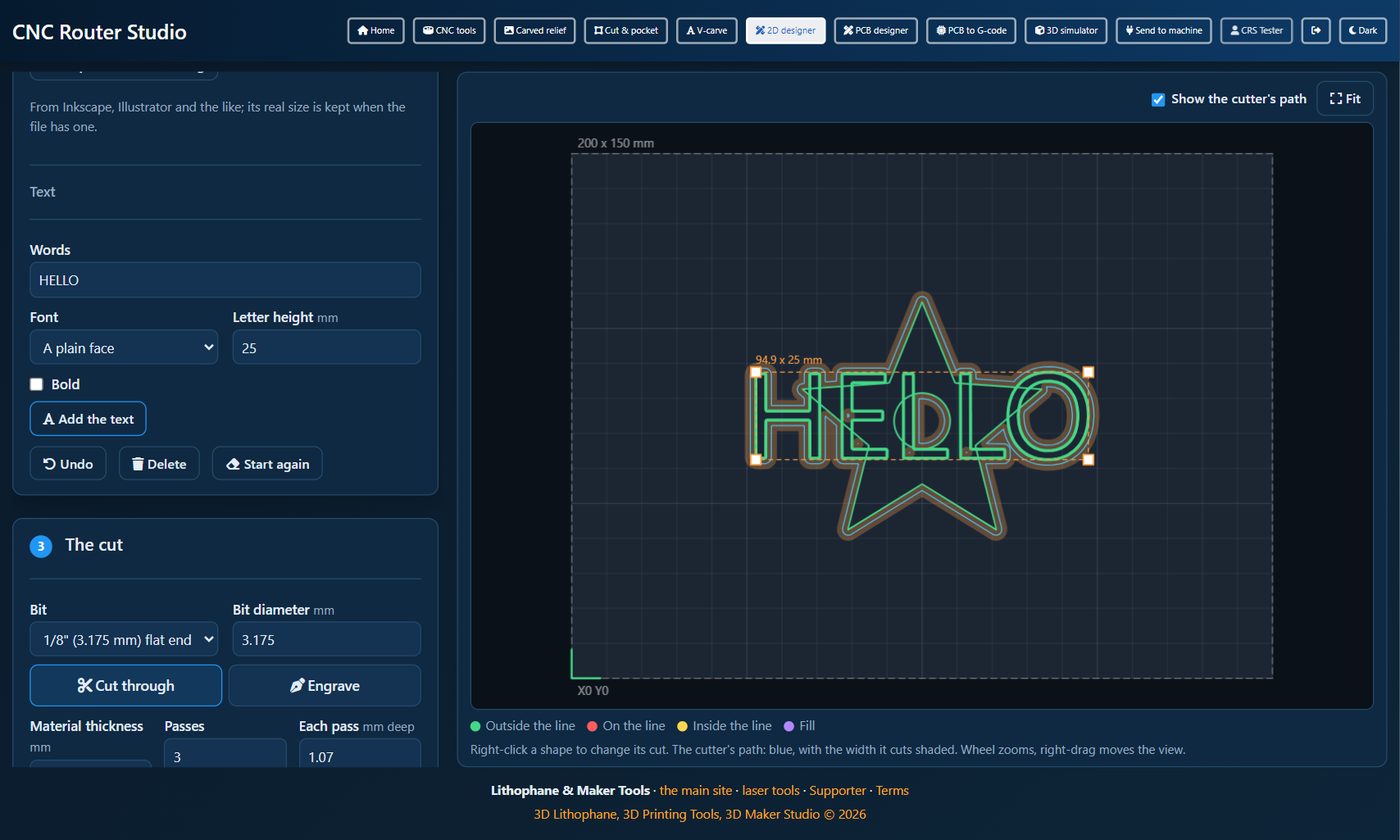
Draw what you want to cut, right here: over a photo, with lines and shapes, text as outlines, or an SVG you import.
The board and drawing
- The board: its width and height. X0 Y0 is its front-left corner. You can put a photo under it to draw over (it is never cut, and never uploaded), or let the page trace its outline for you.
- Draw: Move, Line (click each point), Freehand, Rectangle and Circle; Import an SVG drawing; and Text (words, font, letter height).
- Right-click a shape for its size in mm, a percentage, copy, turn 90°, mirror, move to the middle, delete, and where the bit cuts. Drag a corner handle to resize it.
Where the bit cuts, in colour
- Outside the line (green): the shape you drew is what comes out.
- Inside the line (yellow): a hole the size you drew.
- On the line (red): the middle of the bit follows it. Open lines are always cut on the line.
- Fill (violet): when engraving, the whole shape sunk in.
The cut
- Cut through: the material's thickness, a little deeper, the number of passes and the depth of each (change one and the other follows), and tabs.
- Engrave: the depth, the passes and the depth of each.
14The PCB designer
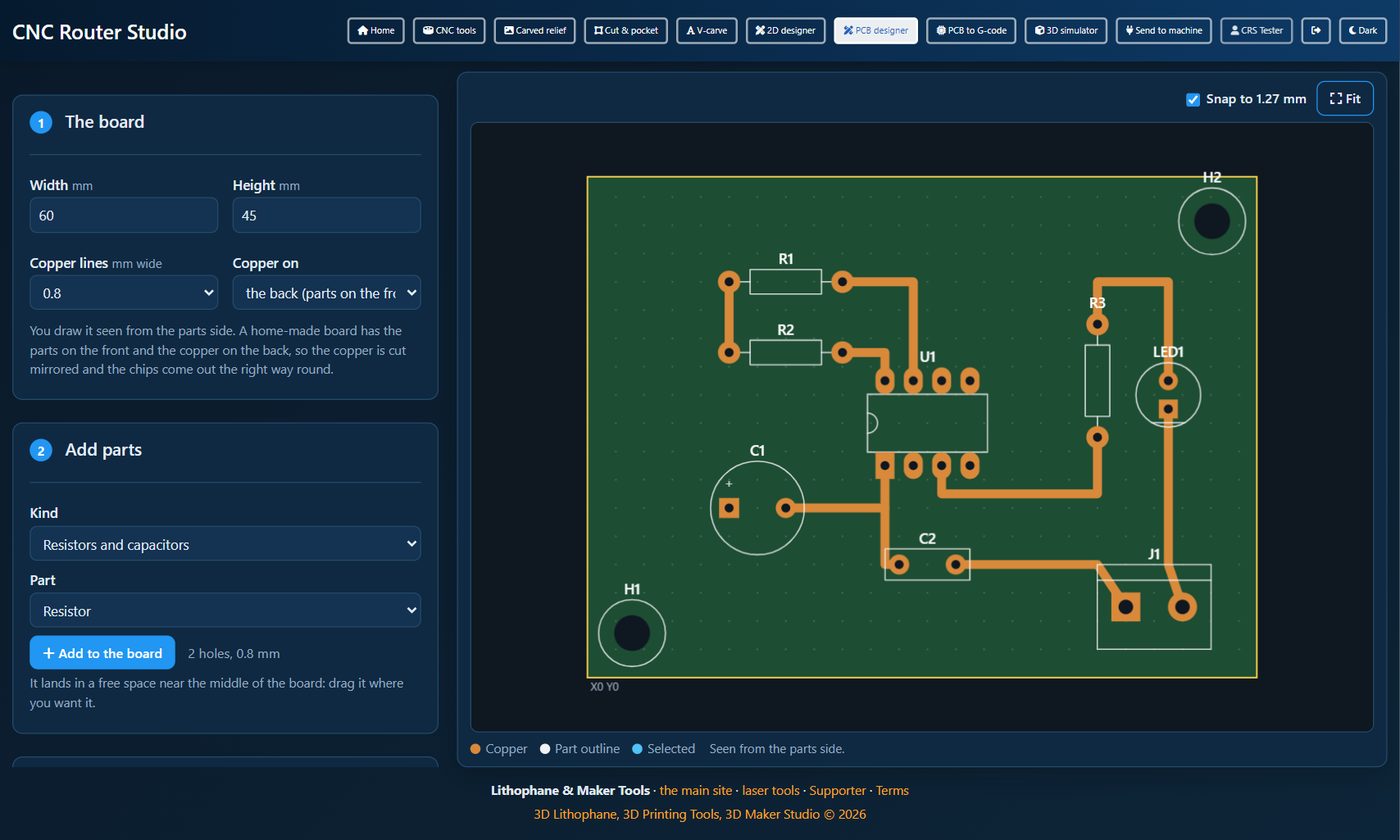
Draw a simple one-sided circuit board with through-hole parts, then make the cut files in one click.
- The board: its size, the width of the copper lines, and which side the copper is on. A home-made board has the parts on the front and the copper on the back, so the copper is cut mirrored and chips come out the right way round. You draw it seen from the parts side.
- Add parts: choose the kind, then the part, and press Add to the board. It lands in a free space: drag it where you want it. Resistors, capacitors, diodes, LEDs, transistors, regulators, chips of 4 to 28 pins, switches, potentiometers, connectors, a 7-segment display, a buzzer, pads and mounting holes.
- Connect them: choose Copper line, click a pad, click the corners, and click the pad it goes to. R turns the selected part, Delete removes it, and its lines follow when you move it.
- Make it: the page warns you about a part off the board, pads too close, a line over a pad, or lines that cross. Then Make the cut files opens the board in PCB to G-code.
You can also download the Gerber files for any other program, and save or open your design as a file.
15PCB to G-code
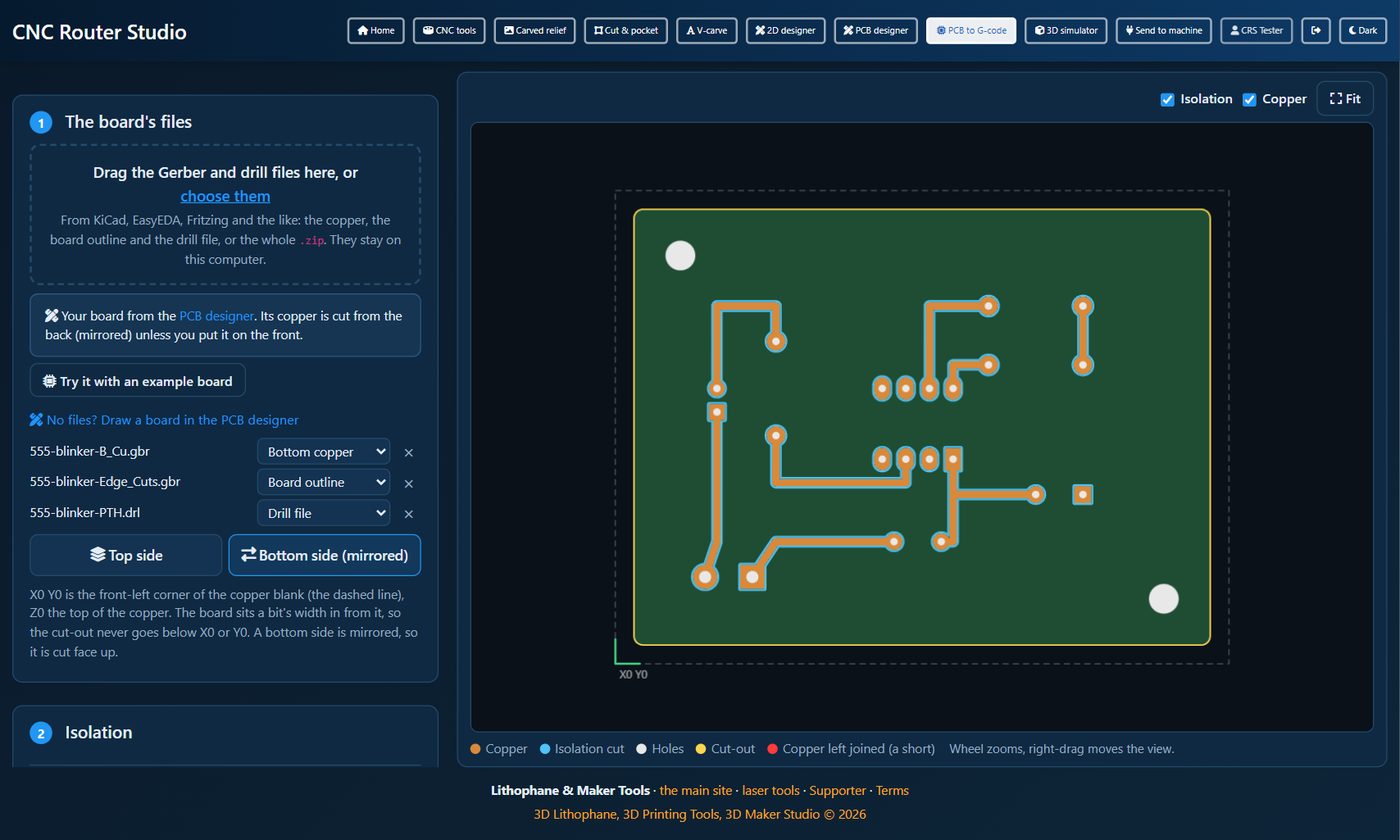
Mill a circuit board from the files a PCB program exports (KiCad, EasyEDA, Fritzing), or from the PCB designer. Drop the
copper, outline and drill files, or the whole .zip. Each file gets a role, which you can change.
- Top or bottom side: a bottom side is mirrored, so it is cut face up.
- Where it lands: X0 Y0 is the front-left corner of the copper blank (the dashed line). The board sits a bit's width in from it, so the cut-out never goes below X0 or Y0. The page says how big the blank must be.
- Isolation: a V-bit (its angle and tip) or a small end mill cuts round the copper, at the depth and in the passes you set.
- Shorts: where two bits of copper are closer than the bit can get between, the page marks them in red. A finer bit, or a smaller V-bit angle, usually fixes it.
- Holes: a drill for each size (the machine stops and says which drill to fit), or one end mill that mills the bigger holes round.
- Cut-out: round the board's outline (or a rectangle), in passes, with tabs.
Download everything makes one file that stops before each new bit; or download each part on its own. Send to machine and Watch it cut in 3D work as on the other tools. For a board that is not flat, probe it first.
16The 3D simulator
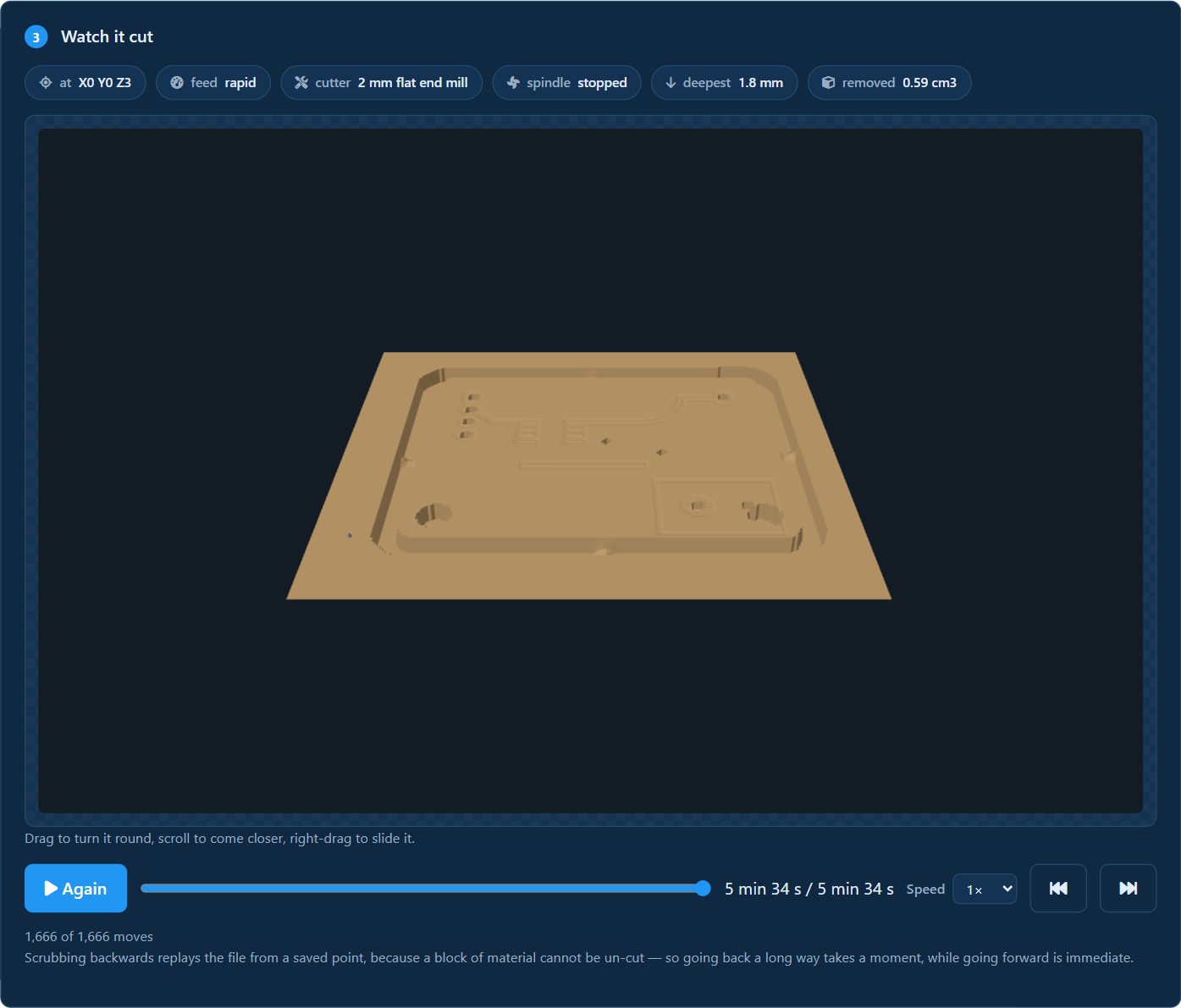
Cut the file into a block of wood on screen, and turn it round, before a bit does it for real. It reads the finished file, not the plan that made it, so it can catch the writer out, and it takes any GRBL file.
- The file: drop a G-code file, or press Watch it cut in 3D on any tool.
- The material and the cutter: its thickness, the margin round the job, the bit, and the detail.
- Watch it cut: Run it, the slider to go anywhere in the file, and the speed. At 1× it runs in real time, from the time the job is worked out to take, so a 10 minute job takes about 10 minutes to watch; 2×, 4×, 8×, 10×, 20× and 50× run that many times faster, and the button at the end goes straight to the finish. Drag to turn the block, scroll to come closer.
- What is in the file: anything worth a look, such as moving sideways with the bit down.
When something is wrong
17Problems and fixes
| What you see | What to do |
|---|---|
| No port in the list | On the website use Chrome or Edge on a computer. Check the cable and that the machine is on; close your other sender. Some machines need a CH340 driver installed. |
| Connects, then nothing | Check the speed is 115200, then press Reset. |
| An axis goes the wrong way | Tick it under Reverse an axis on the Machine tab (it goes into the machine). |
| Alarm | Press Unlock ($X). Home it if it may have lost its place. A hard limit alarm means a switch was hit: jog away from it first. |
| "At its wall" | No limit switches: X and Y stay between your zero and the work area. Set the zero where the job starts, or choose Fitted if the machine has switches. |
| "Goes past the walls" | The job is not inside the work area from your zero. Move the zero so the whole job is in front of and to the right of it, or make the job smaller. |
| "It does not fit" | Check the sizes on the Machine tab, and where your zero is. |
| The machine refused a line | The page stops and shows the line. Skip it and carry on, or stop the job. A
refused $J on GRBL 0.9 is normal: the page uses ordinary moves there. |
| The probe did not touch | Check the clip and the wire, and that Z zero is close to the board; then Unlock. |
| The cut is too deep or too shallow | Set Z zero again on the top of the material, with the bit that is in the spindle. On a PCB, use the height map. |
| Today's free jobs or downloads are used up | They come back tomorrow, or unlock CNC Router Studio for no limits. The Simulator and the 3D simulator are always free. |
Still stuck? Write to support@3d-lithophane.com. Save on the Output tab makes a file of everything the machine said: send it along.
18Keys and quick reference
| Key | Where | What it does |
|---|---|---|
| ← → ↑ ↓ | Send to machine | Jog X and Y one step |
| Page Up Page Down | Send to machine | Jog Z up and down |
| Esc | Send to machine | Stop Move; drop the shape being drawn |
| Ctrl+Enter | The G-code editor | Use this G-code |
| V L F R C | 2D designer | Move, Line, Freehand, Rectangle, Circle |
| R | PCB designer | Turn the selected part |
| Delete | 2D and PCB designers | Delete the selected shape or part |
| Ctrl+Z | 2D and PCB designers | Undo |
| Enter, double-click | Drawing lines | End the line |
A few GRBL words
| Word | Meaning |
|---|---|
$H | Home, on the limit switches |
$X | Unlock after an alarm |
$$ | List the machine's settings |
G0 / G1 | Move in the air / cut at the feed |
M3 / M5 | Spindle on / off |
M0 | Stop here (a bit change) |
G38.2 | Probe: move until the probe touches |
CNC Router Studio · 3d-lithophane.com · October 2026